



Step 18: Create Impulse
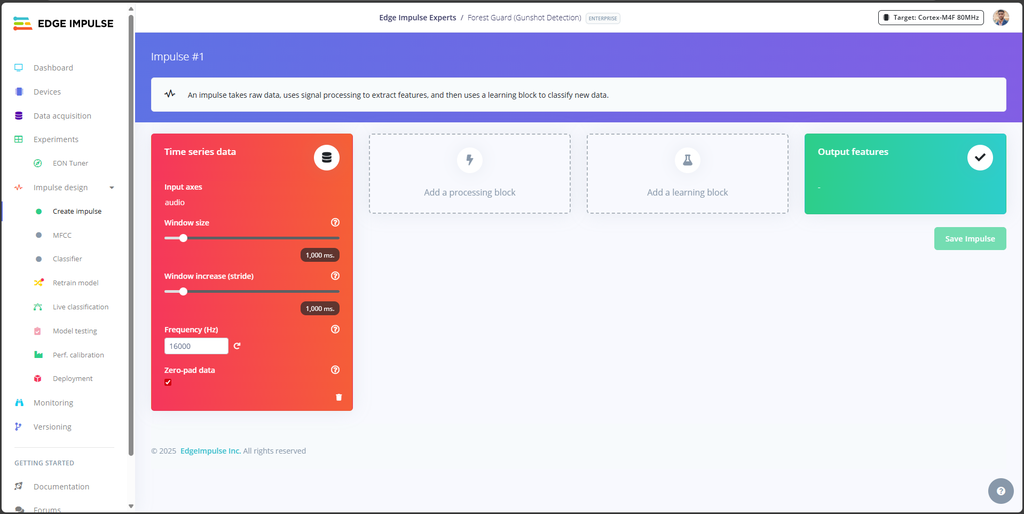
With your dataset ready and split into 1-second audio clips, the next step in Edge Impulse is to design the impulse, the pipeline that converts raw audio into features, and then trains a classification model.
Create a New Impulse
- In Edge Impulse Studio, go to the Create Impulse tab.
- Set the Window Size and Frequency as shown in the reference image (these define how much audio is processed in each slice and at what sample rate).
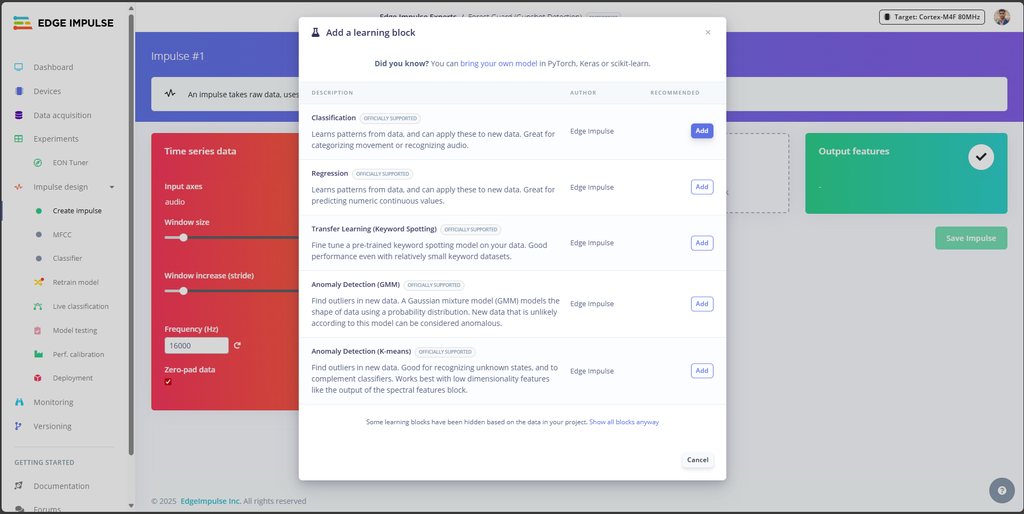
Add Blocks
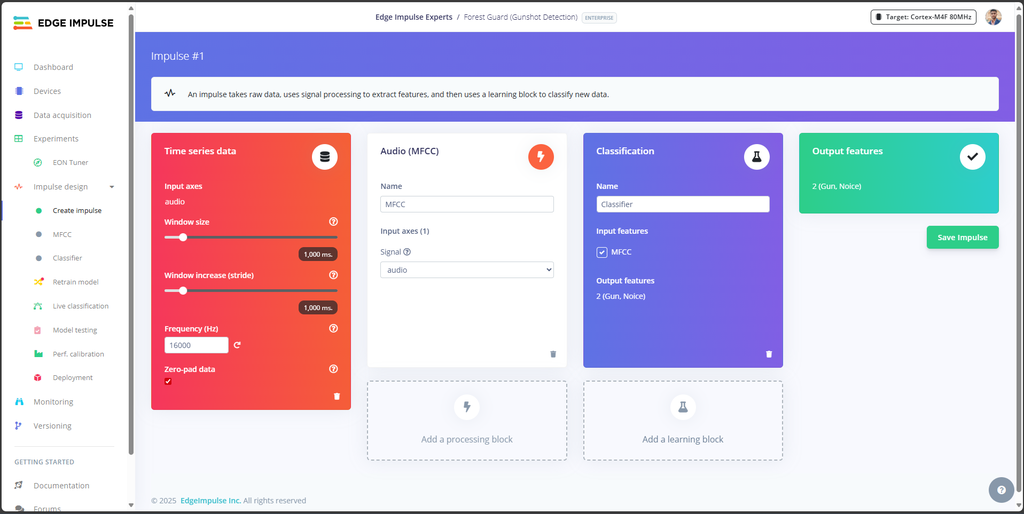
- Processing Block: Select Audio (MFCC).
- MFCC (Mel-Frequency Cepstral Coefficients) transforms raw sound waves into a spectrogram — a compact representation of sound patterns that the ML model can learn from.
- Learning Block: Select Classification.
- This will train a neural network to classify between labels like Gunshot and Noise.

Save the Impulse
- Once both blocks are added and configured, click Save Impulse. This locks in the pipeline that will be used in the next steps for feature extraction and training.
Step 19: Generate Features
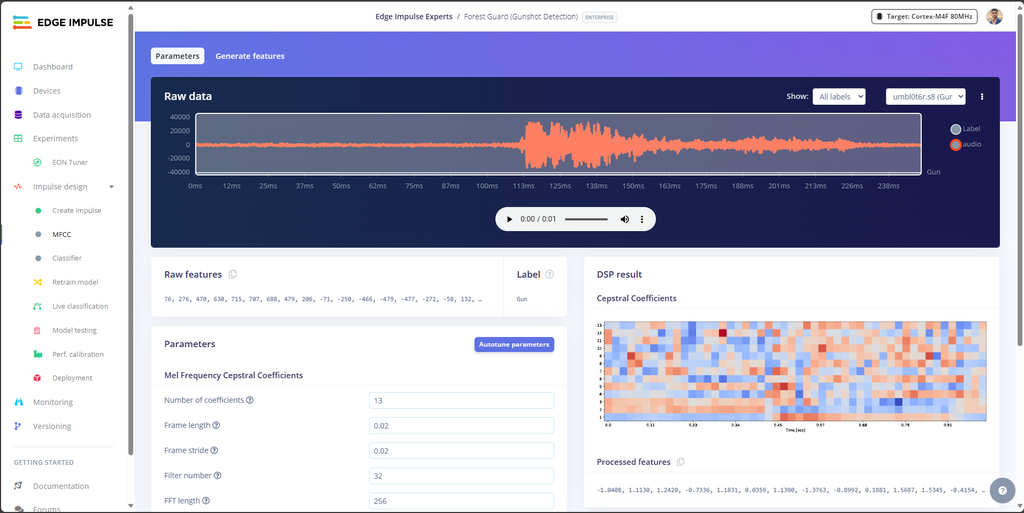
Now that the impulse is created, we need to extract features from our audio samples. This is the process that converts raw sound into meaningful patterns (MFCCs) that the classifier can learn from.
- In Edge Impulse Studio, go to the MFCC block (under Impulse Design).
- Click Save Parameters to confirm the default MFCC settings.

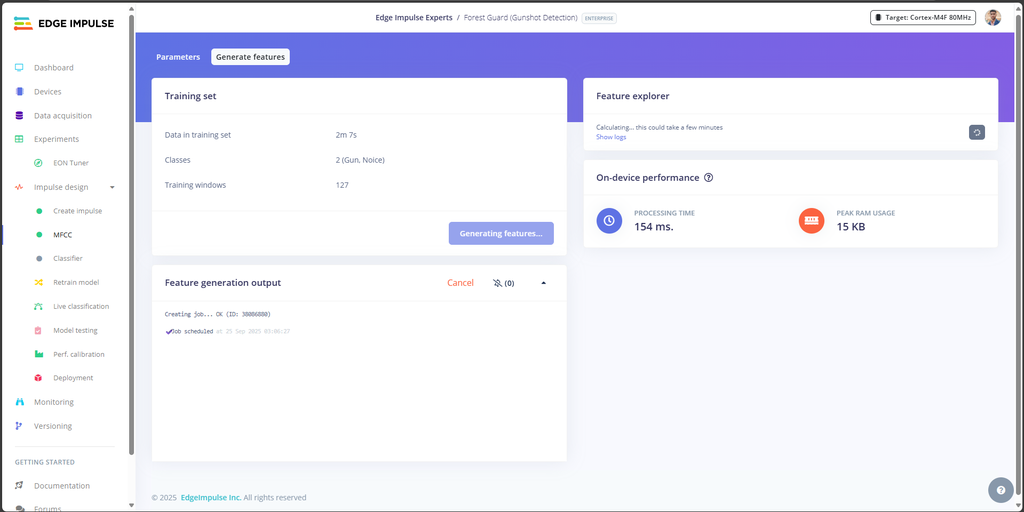
- Press Generate Features.
- Edge Impulse will now process all your audio samples.
- This step can take a few minutes depending on dataset size.
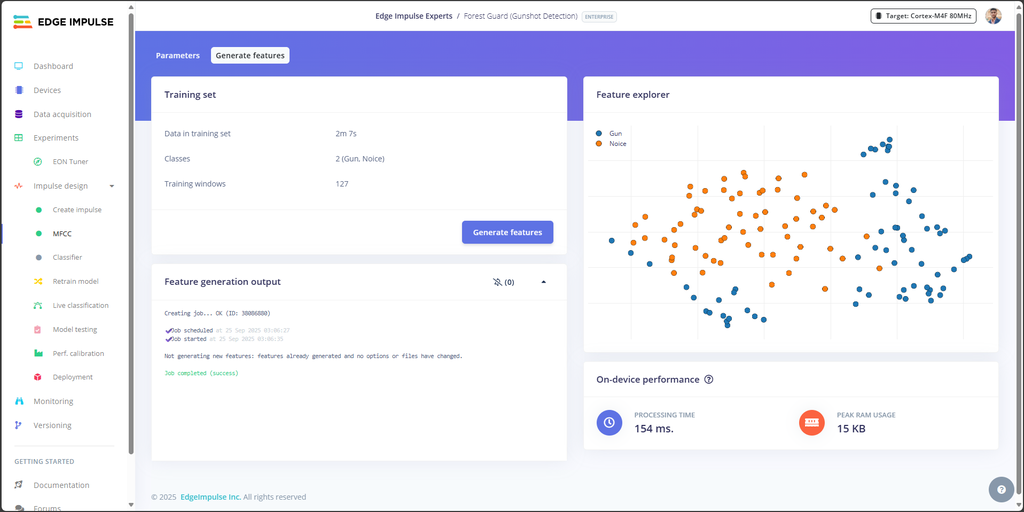
- Once finished, you’ll see a Feature Explorer graph on the right side of the screen.
- Each point on the graph represents a 1-second audio sample.
- Samples with similar characteristics (like background noise) will cluster together, while distinct sounds (like gunshots) will form separate groups.
- Clear separation between Gunshot and Noise clusters is a good sign — it means your model will be easier to train accurately.
Step 20: Train Classification Model
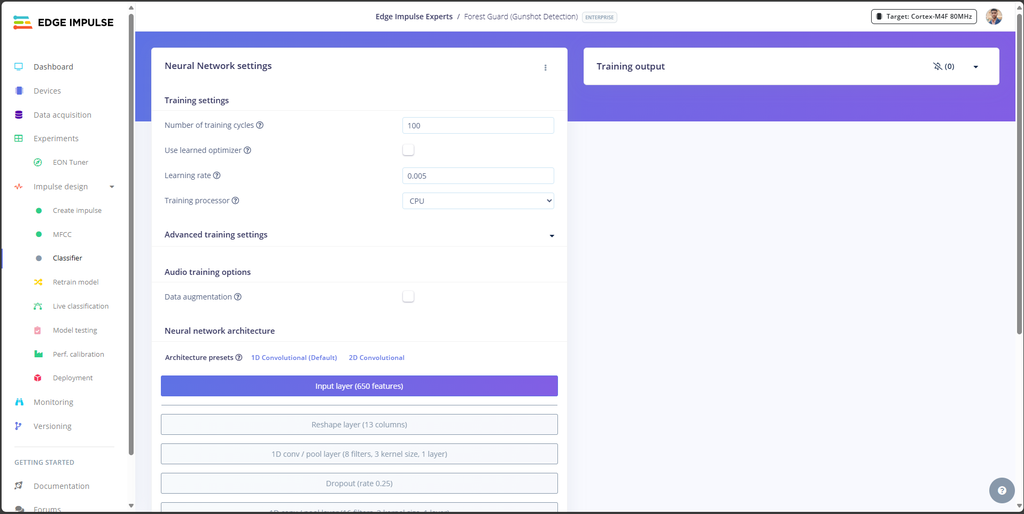
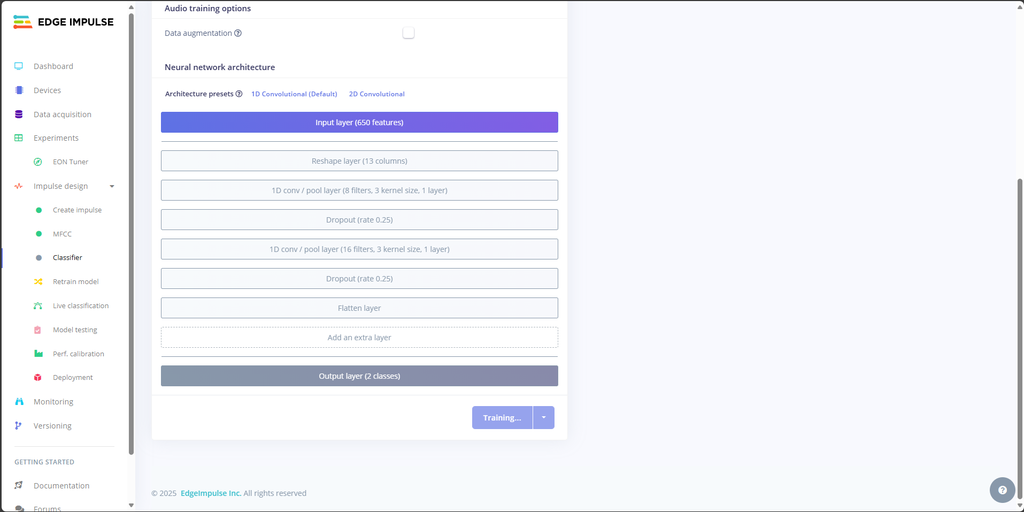
With your features generated, it’s time to train the Neural Network classifier that will distinguish between Gunshot and Noise.
- In Edge Impulse Studio, go to the Classifier tab.
- Click Save and Train.
- Training will take a few minutes depending on dataset size.
Default training settings usually work well:
- Number of training cycles: 100
- Learning rate: 0.005
- Processor: CPU
- Architecture: 1D Convolutional Neural Network (recommended for audio)
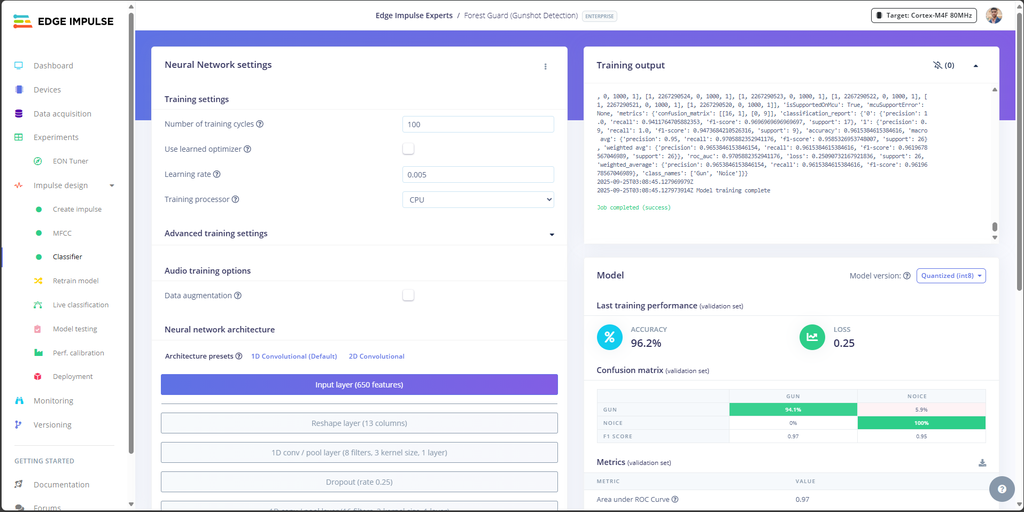
Results

Once training is complete, you’ll see:
- Accuracy → ~96% (based on your dataset).
- Loss → around 0.25 (lower is better).
Confusion Matrix →
- Gunshot classified correctly ~94% of the time.
- Noise classified correctly ~100% of the time.
Metrics →
- Precision: 0.97
- Recall: 0.96
- F1 Score: 0.96
On-device performance →
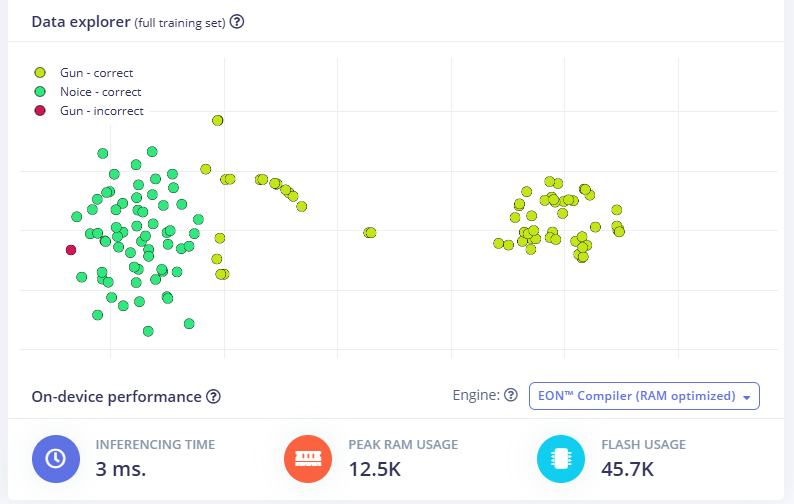
- Inferencing time: ~3 ms
- RAM usage: ~12.5 KB
- Flash usage: ~45 KB
Step 21: Build and Download the Model
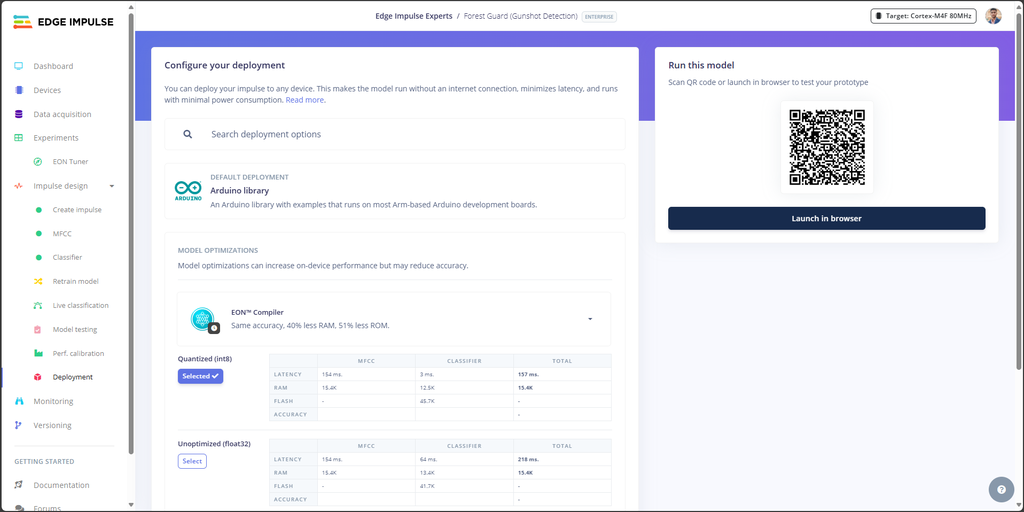
Once your classifier is trained and performing well, the next step is to export the model so it can run directly on your ESP32-S3 Node. Edge Impulse makes this very easy by packaging the trained model into an Arduino-compatible library.
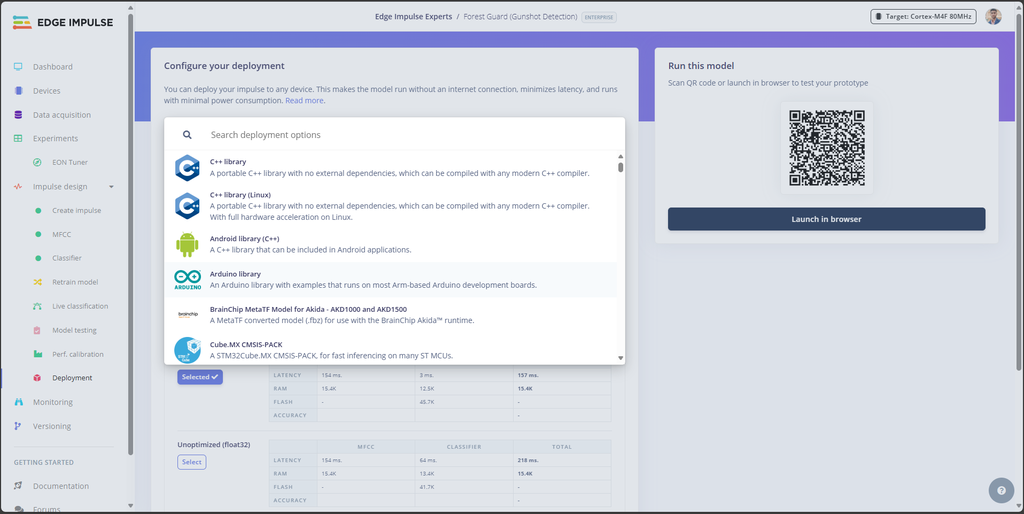
- In Edge Impulse Studio, go to the Deployment tab.
- Under Deployment options, select Arduino library.
- This will create a.zip library that can be imported into the Arduino IDE.
- Click Build.
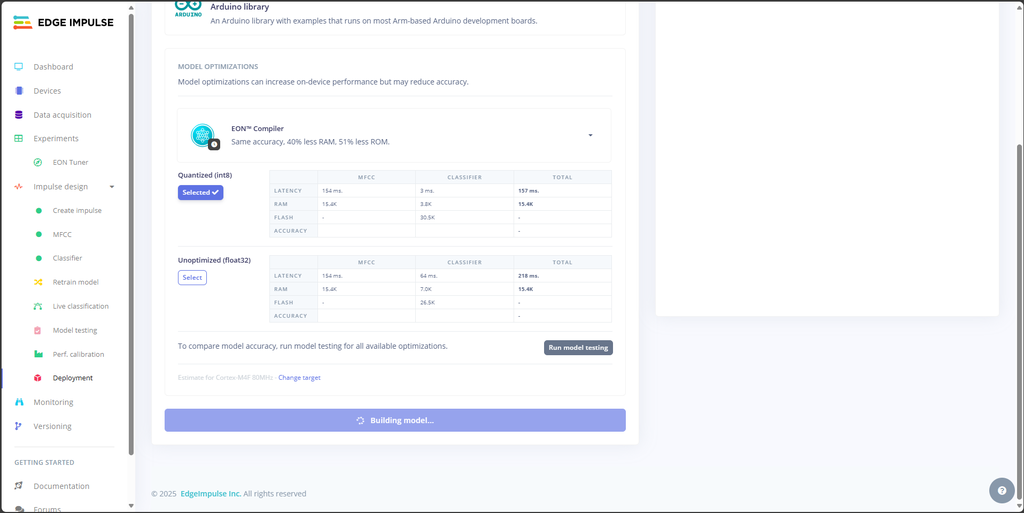
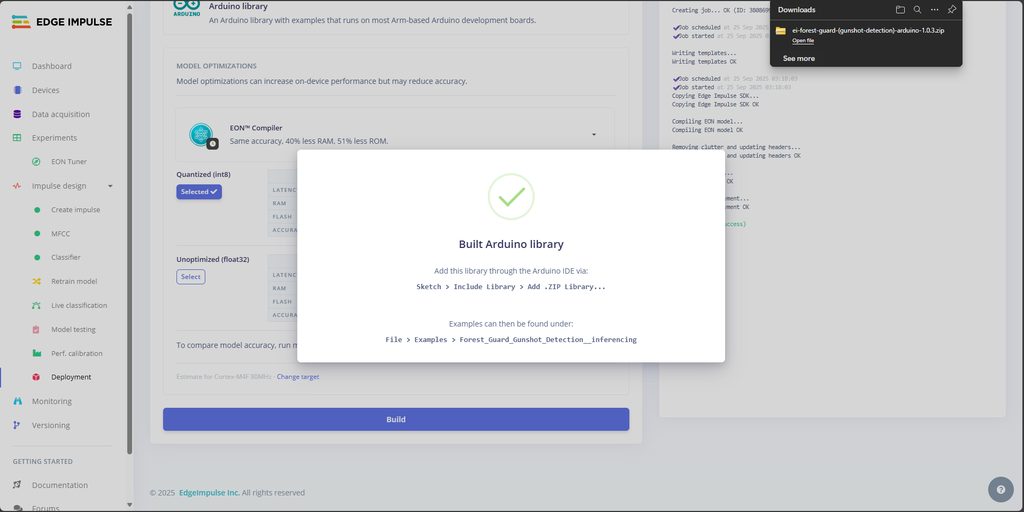
Once the build completes, Edge Impulse will automatically download the library to your computer.
The file will be named something like:
Forest_Guard_Gunshot_Detector_arduino-1.0.0.zipStep 22: Arduino Setup
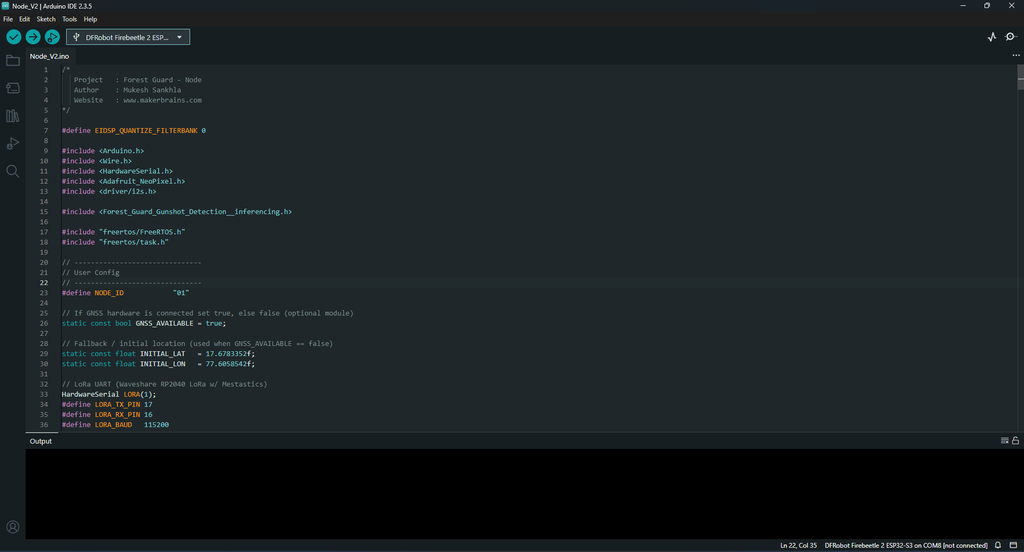
Now that we have our trained Edge Impulse model ready, let’s set up the Arduino IDE with all the required libraries to compile and upload the Node code.
Open the Project
- Launch Arduino IDE.
- Open the Node_V2.ino file (this is the main code for the Forest Guard Node).
Install Required Libraries
1. Edge Impulse Model Library
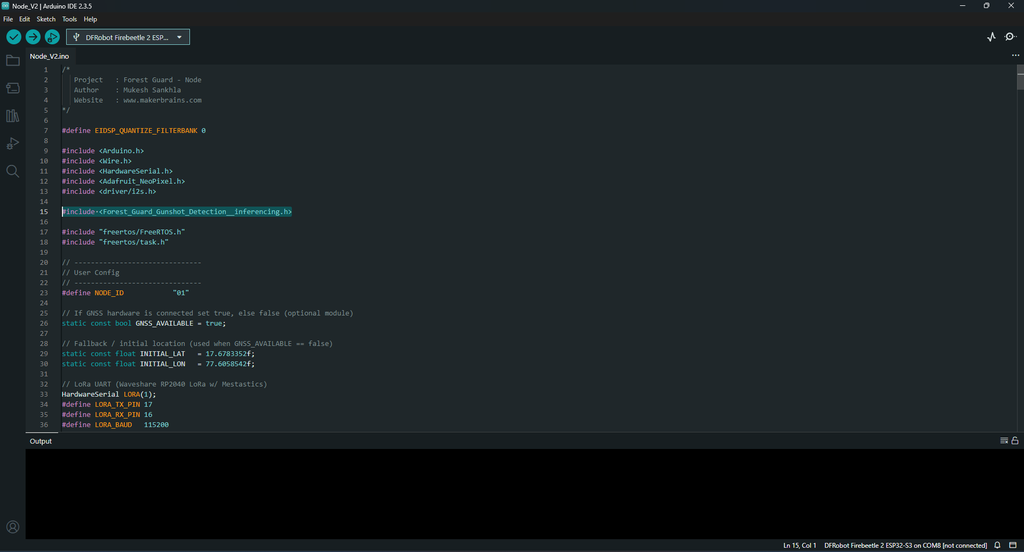
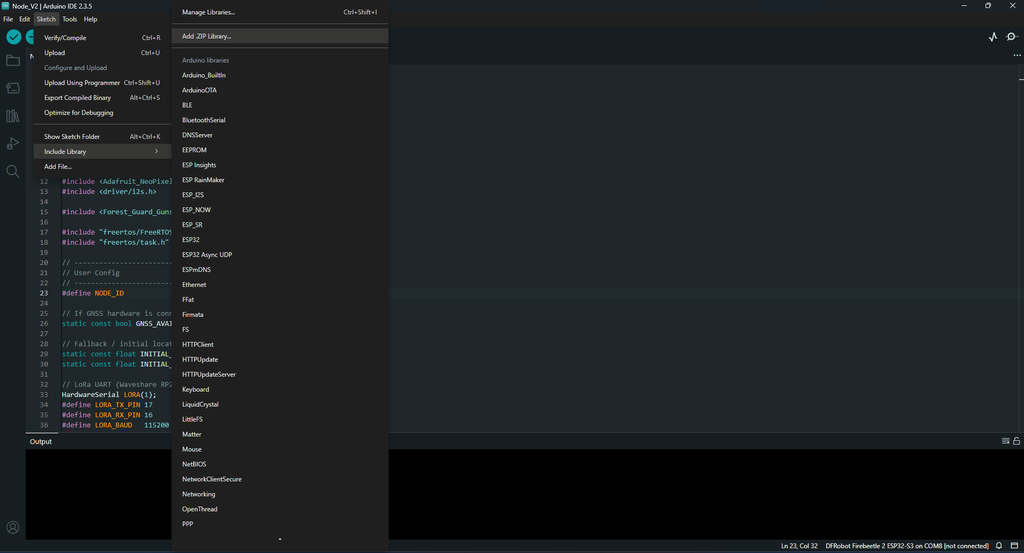

- Go to Sketch → Include Library → Add .ZIP Library…
- Select the .zip file you downloaded from Edge Impulse in Step 20.
- This adds your custom ML model to the project.

2. GNSS Library
Download and install the GNSS driver library from DFRobot:
- Install it the same way (Add .ZIP Library).
3. Environmental Sensor Library
Download the library for the multifunction environmental sensor:
👉 DFRobot Environmental Sensor Library
- Install it the same way (Add .ZIP Library).
NeoPixel Library

- In Arduino IDE, open Library Manager (Sketch → Include Library → Manage Libraries…).
- Search for Adafruit NeoPixel.
- Install the latest version.
Step 23: Upload the Code
Now that everything is configured, it’s time to flash the Node firmware to the ESP32-S3.
Code Adjustments Before Upload
Open the Node_V2.ino sketch in Arduino IDE and check the following user configuration section:
- Edge Impulse Include
- Change the #include <...inferencing.h> line to match the filename of the model you downloaded in Step 20.
- Example:
#include <Forest_Guard_Gunshot_Detector_inferencing.h>- Node ID
- Set a unique NODE_ID for each device.
- Example: "01", "02", etc.
- GNSS Availability
- If your Node has a GNSS sensor attached → set GNSS_AVAILABLE = true.
- If not → set it to false.
- Manual Location (Optional)
- When GNSS is disabled, update the fallback latitude and longitude:
static const float INITIAL_LAT = <your_latitude>;
static const float INITIAL_LON = <your_longitude>;
Arduino IDE Settings
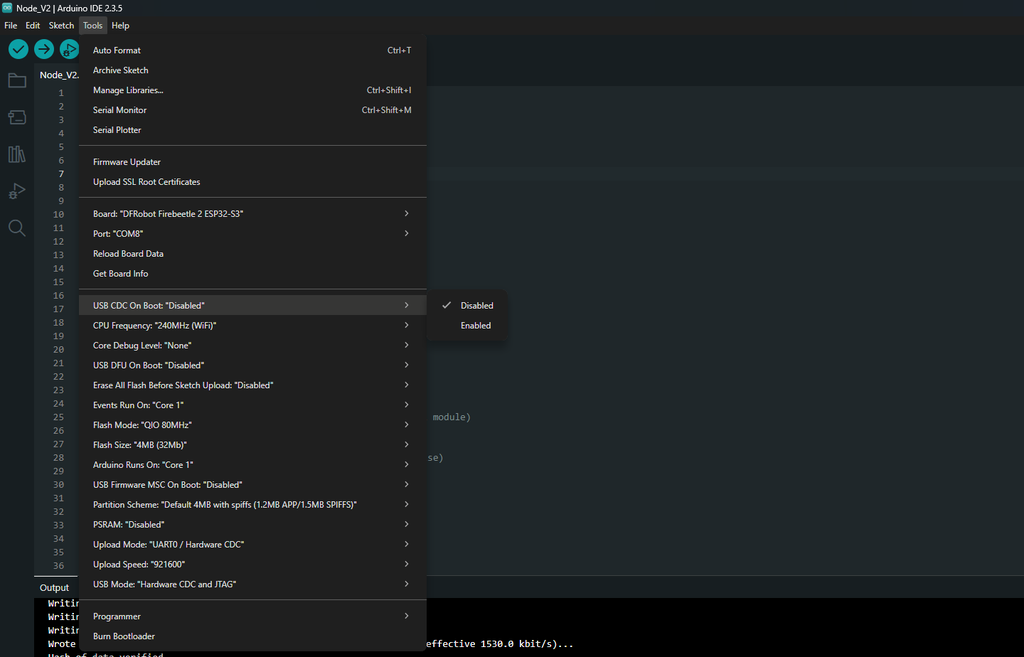
- Go to Tools → Board → ESP32 → DFRobot FireBeetle 2 ESP32-S3.
- Connect your ESP32-S3 via USB-C cable.
- Under Tools → Port, select the correct COM port.
- Go to Tools → USB CDC On Boot → Disable.
Upload the Code
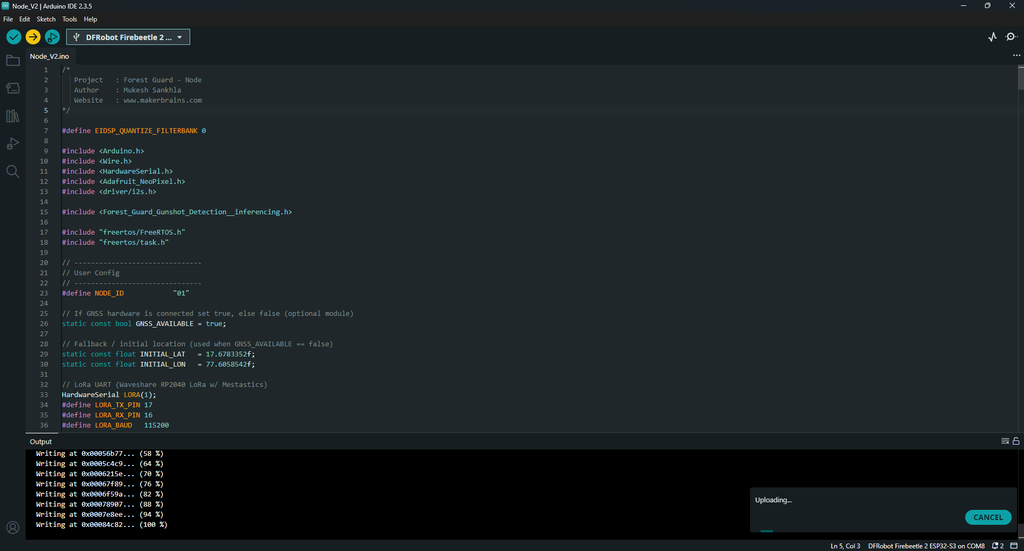
- Click the Upload button in Arduino IDE.
- The code will compile (this may take a while since the Edge Impulse model is large).
- Once complete, the firmware will be flashed to your ESP32-S3 Node.
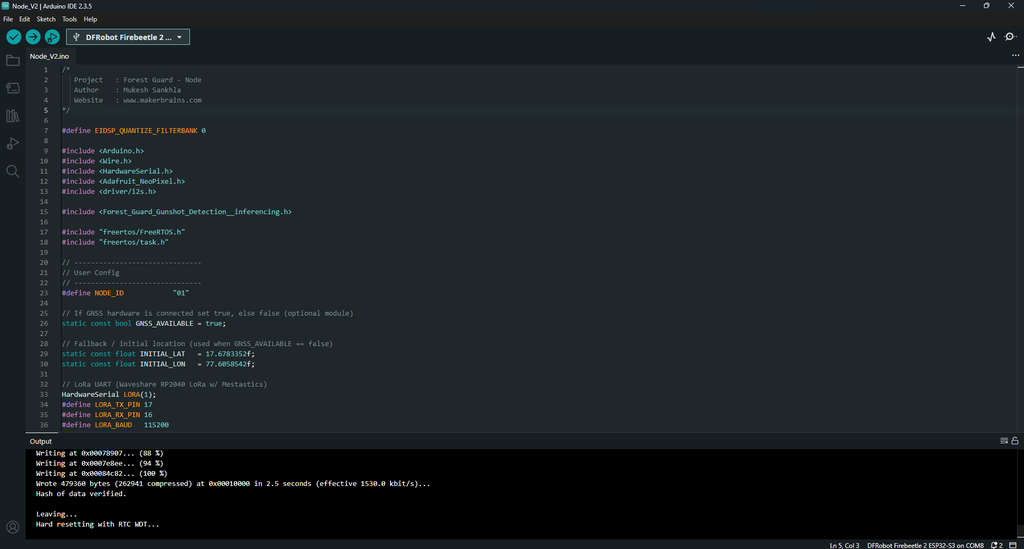
After Upload
- The Node should boot with a Blue breathing LED (boot + LoRa init).
- After registration with the Gateway, it will begin sending sensor data and detecting events.
Step 24: Gateway Design and 3D Printing
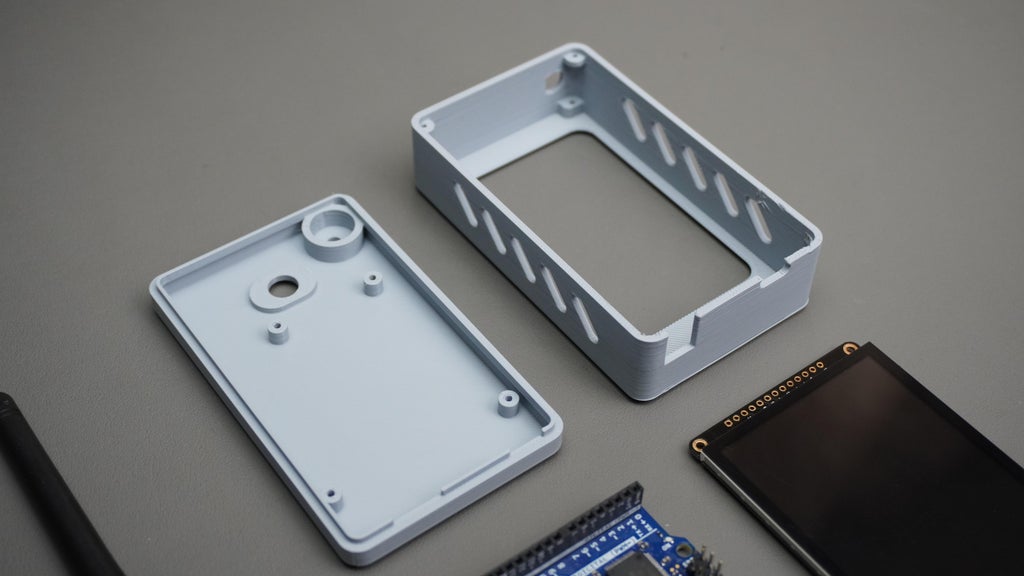
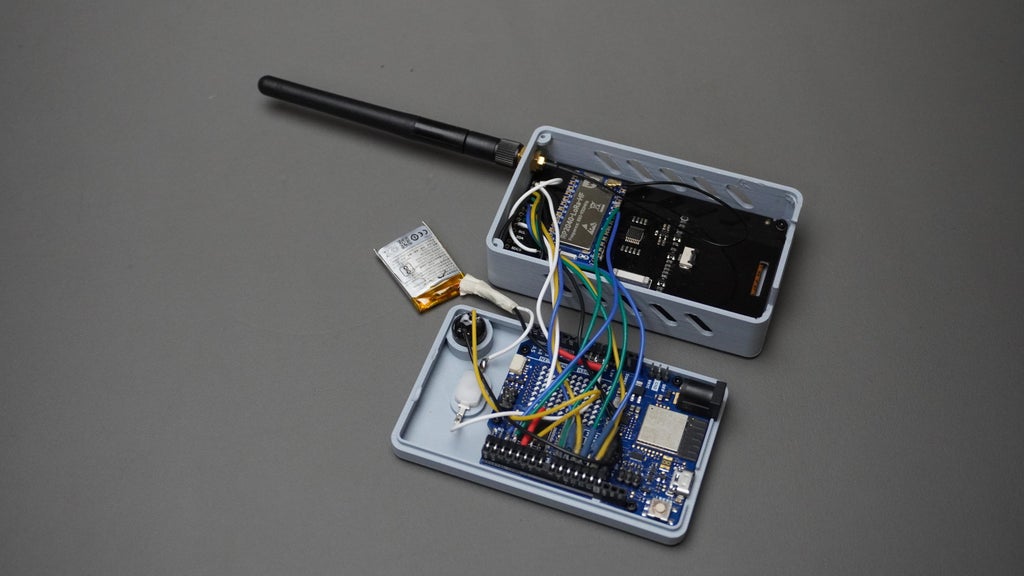
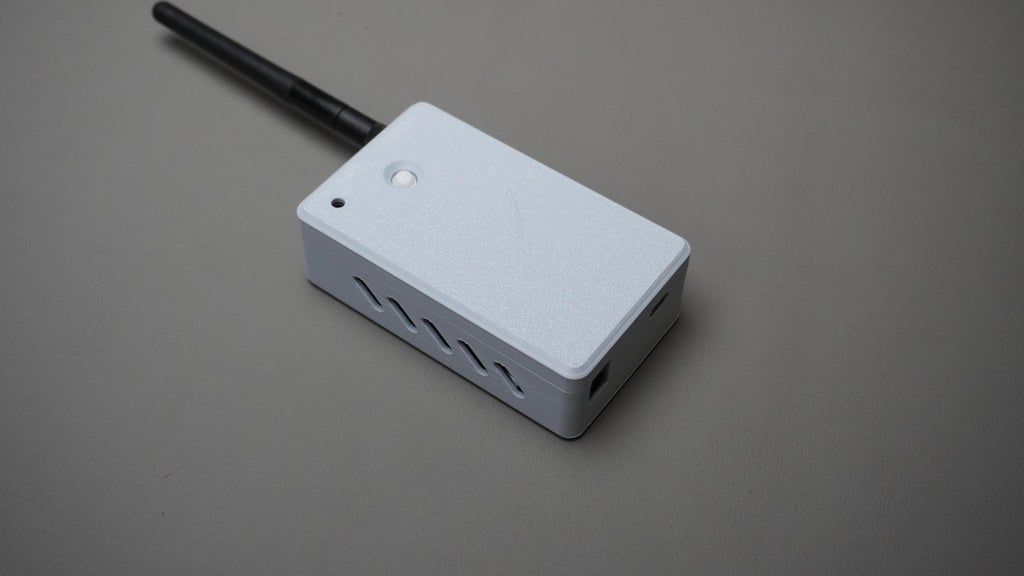
For the Gateway enclosure, I started by importing the Arduino Uno R4 WiFi and the 3.5” TFT display model into Fusion 360. This allowed me to design the case around the exact dimensions of the components.
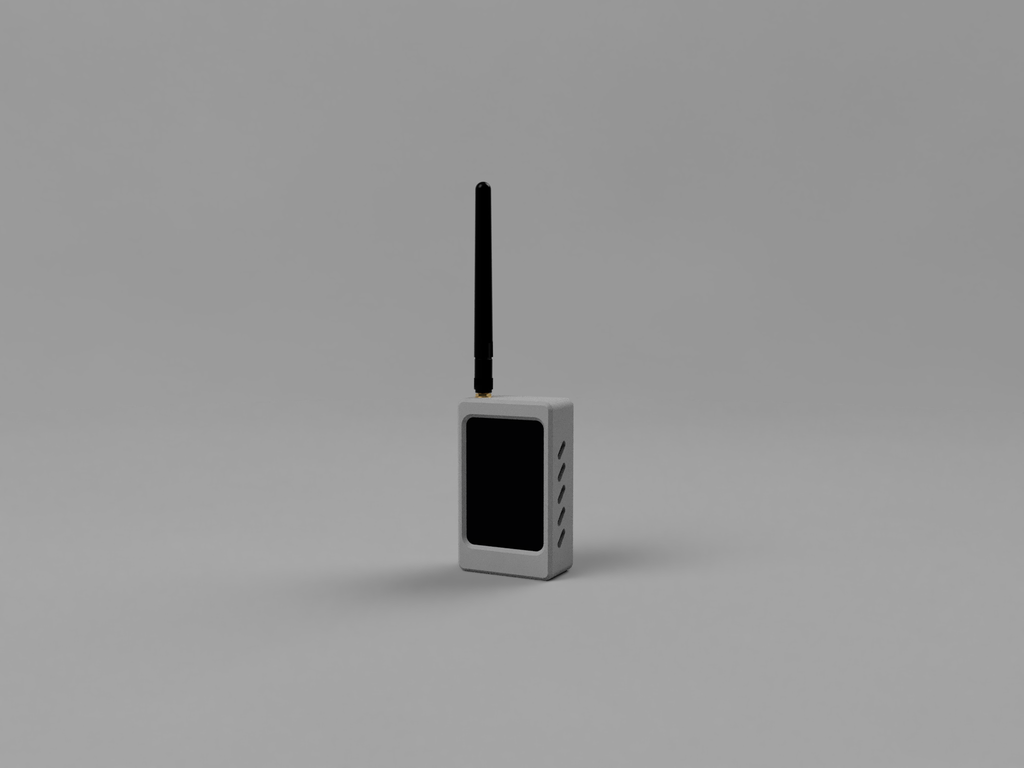
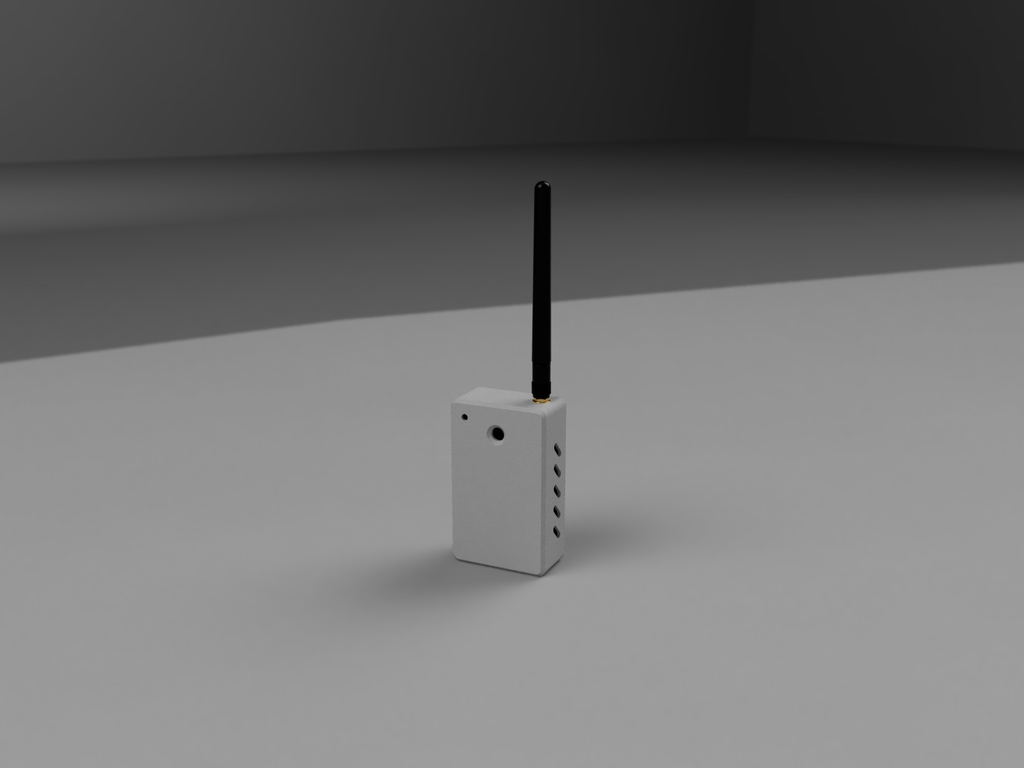
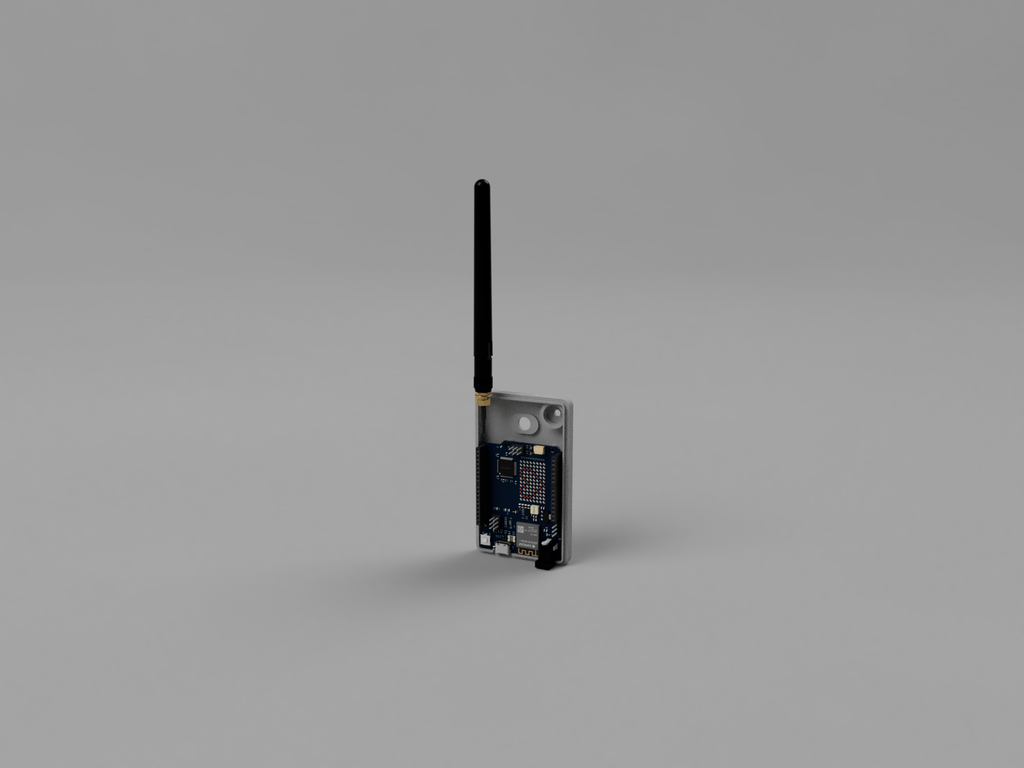
Enclosure Features
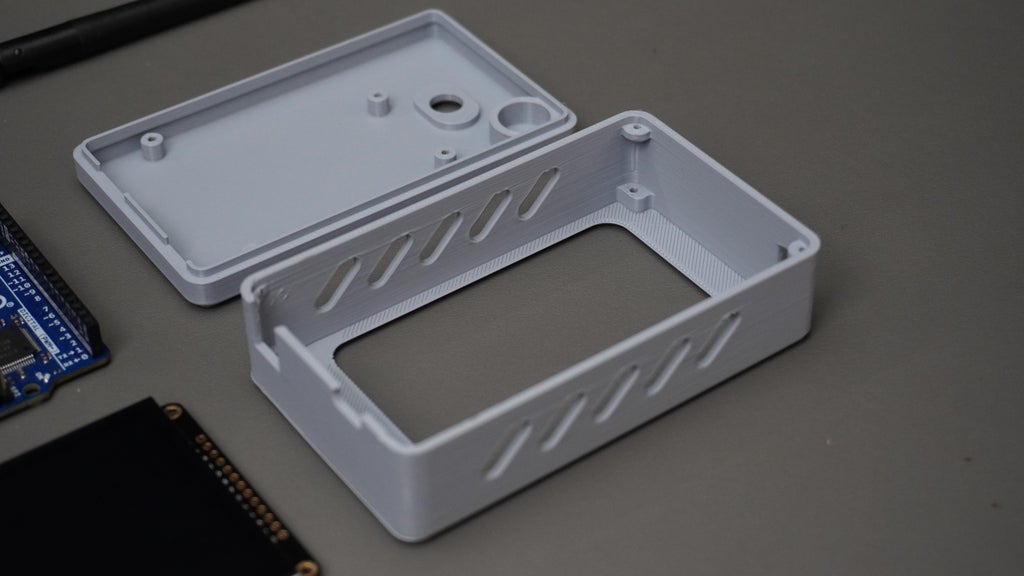
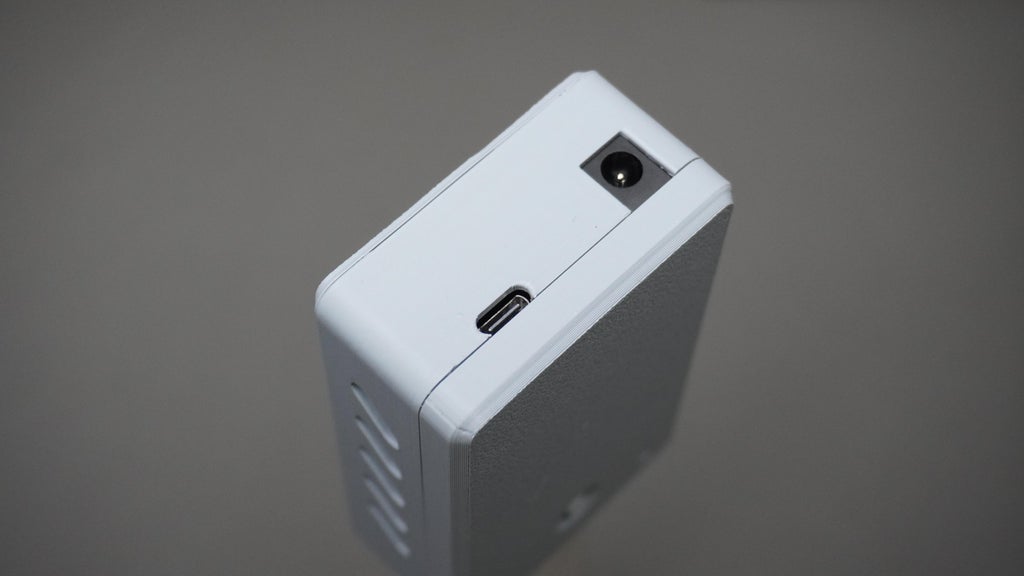
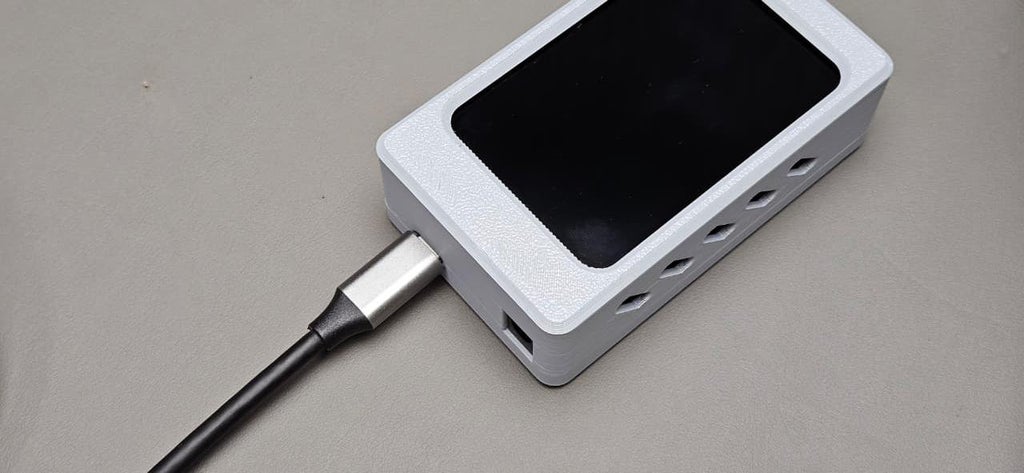
- Housing - Includes cutouts for the TFT display, LoRa antenna, and the Arduino Type-C port.
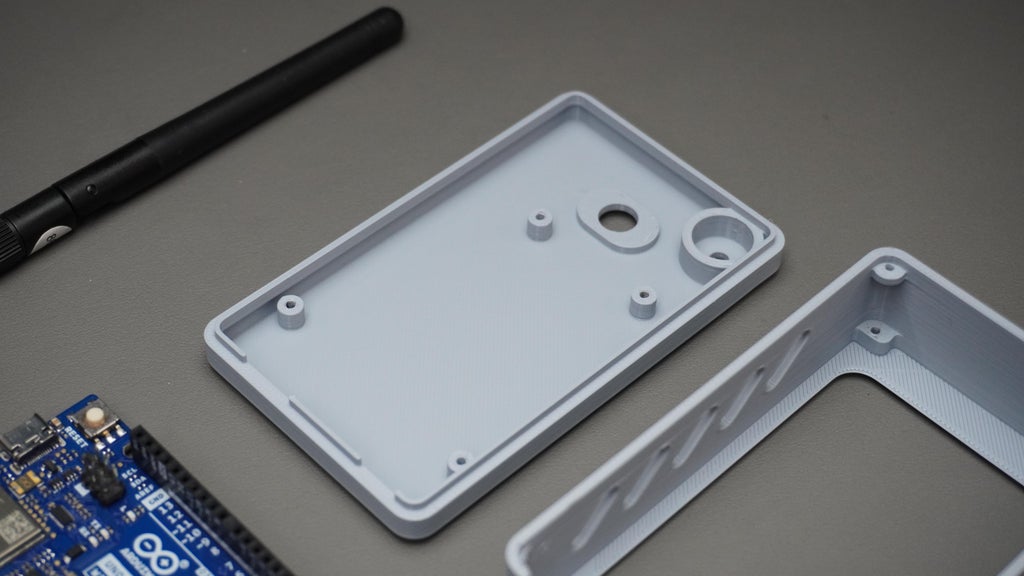
- Cover - Designed with mounting holes to securely fix the Arduino board inside.
3D Printing
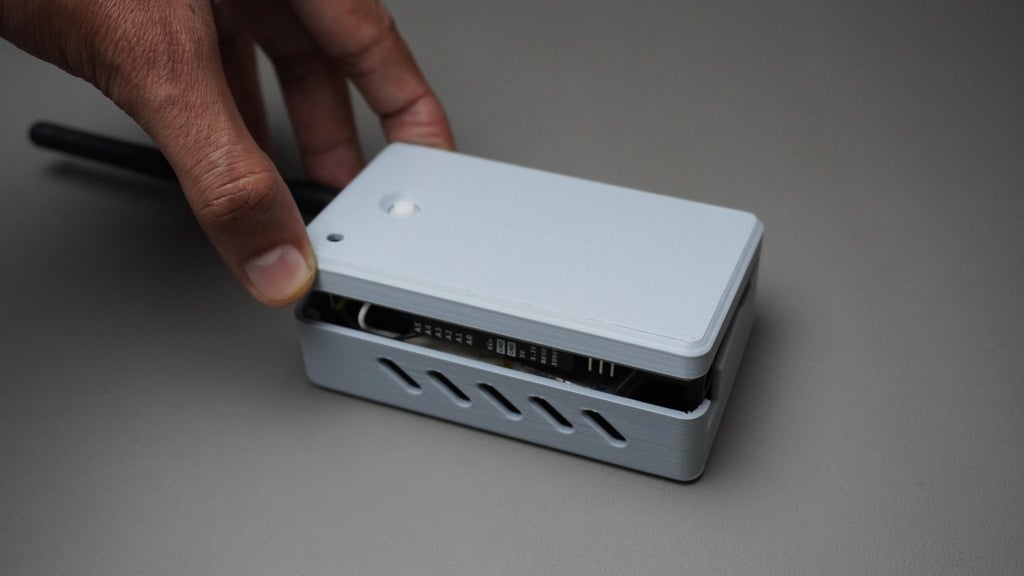
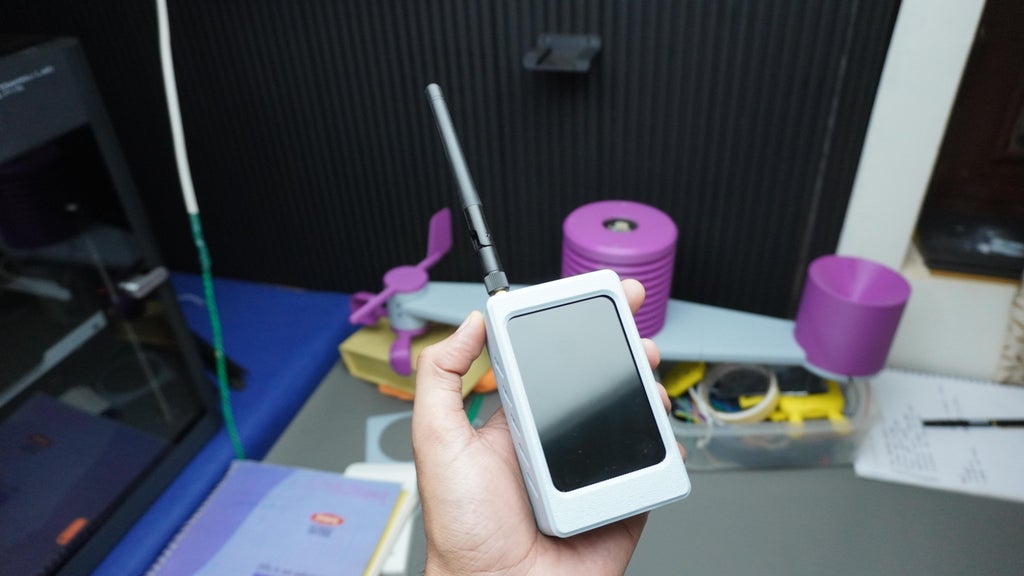
I 3D printed both the housing and the cover in light gray using my Bambu Labs P1S printer. The parts came out strong, precise, and professional-looking, making the gateway unit both robust and visually consistent with the Node design.
Step 25: Housing Assembly
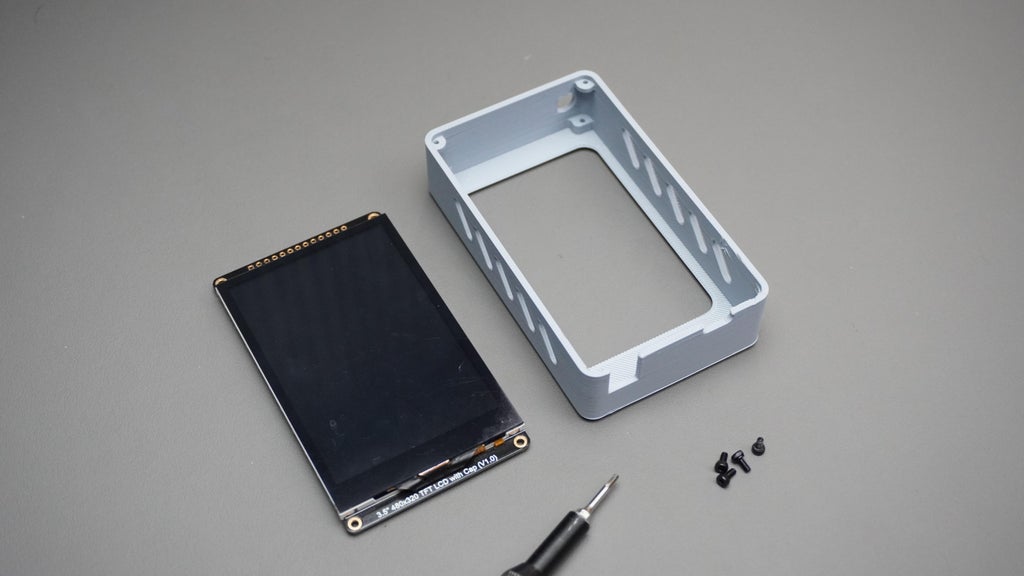
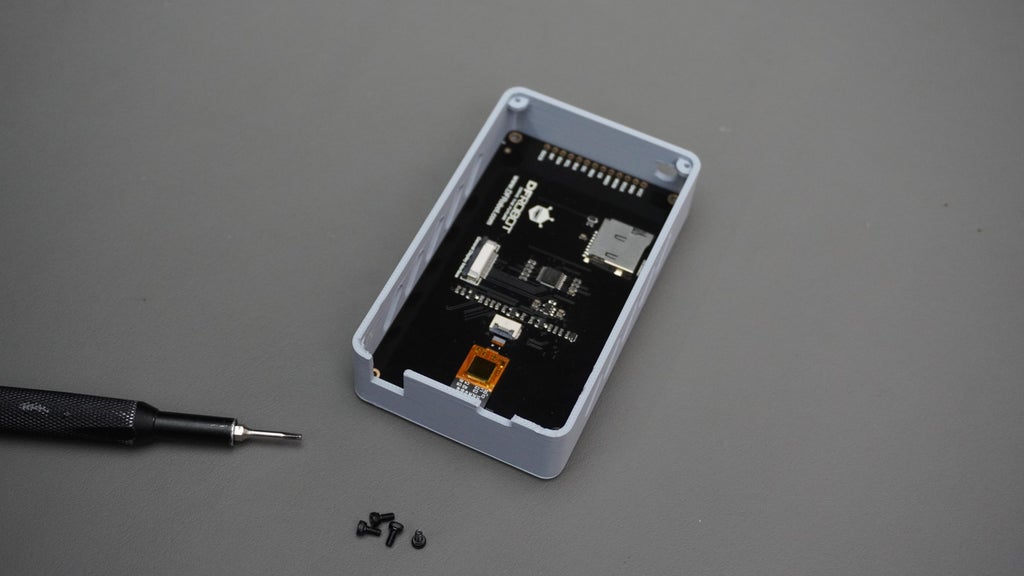
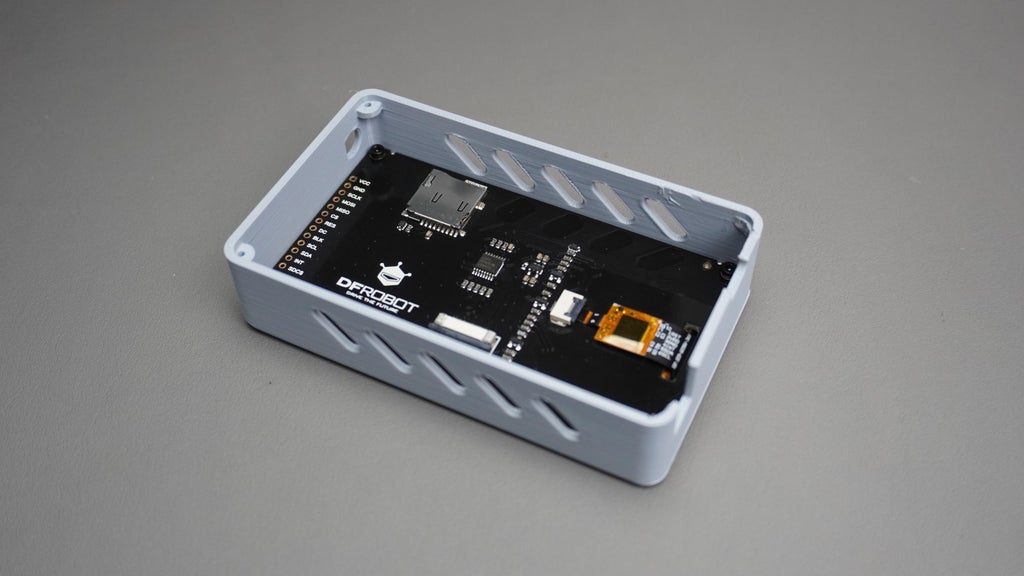
- Take the gateway housing and the TFT display.
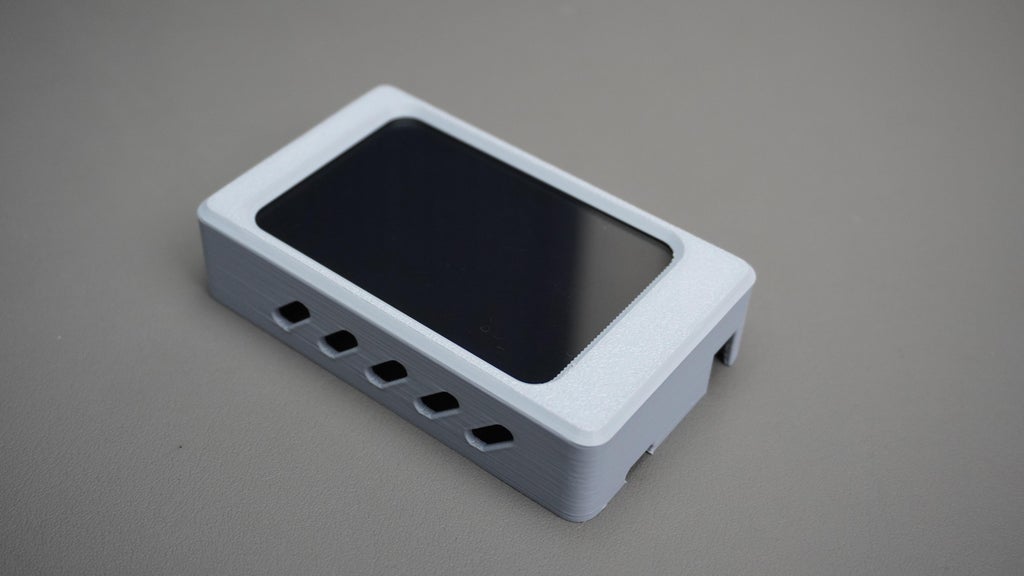
- Place the display into the housing, making sure it is in the correct orientation with the screen aligned to the cutout.
- Secure the display using 4× M2 screws.
- Double-check that the screen sits flush with the housing and is firmly fixed in place.


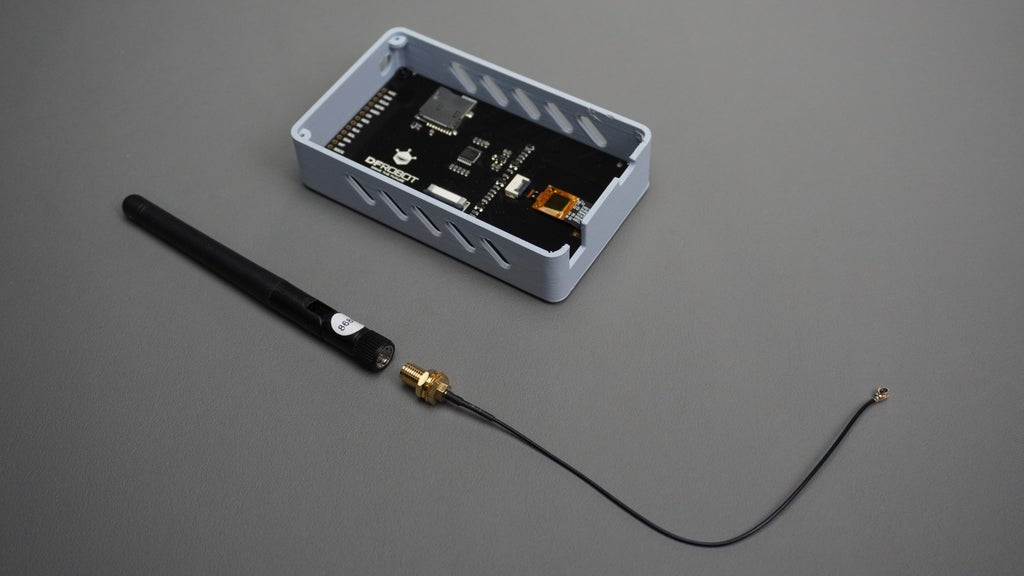
Step 26: Antenna Assembly
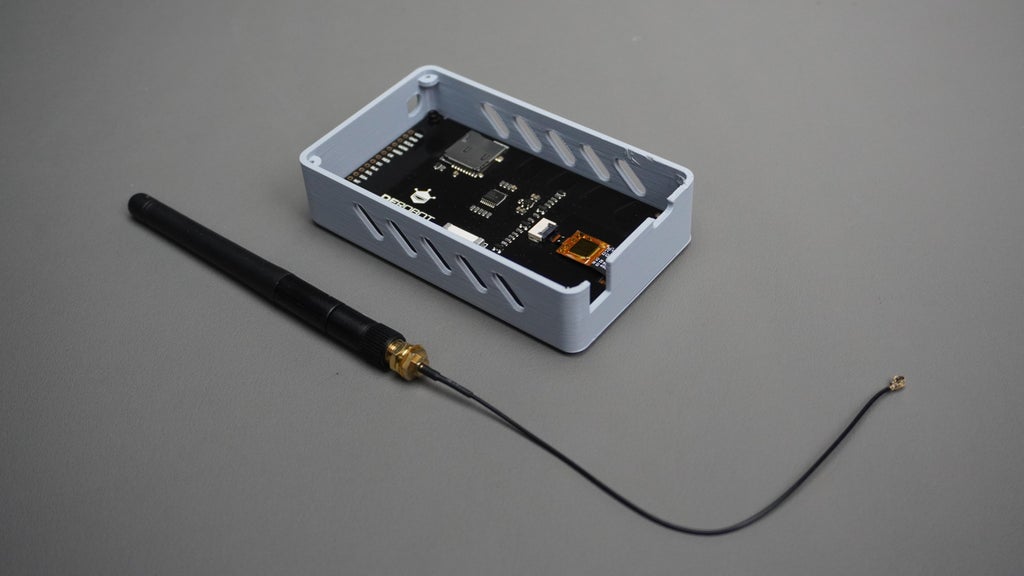
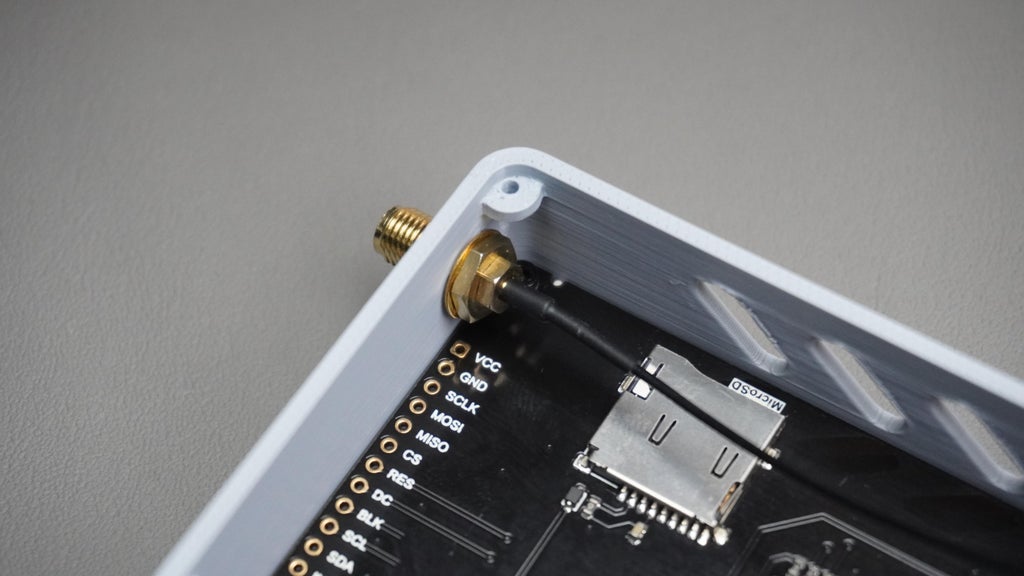
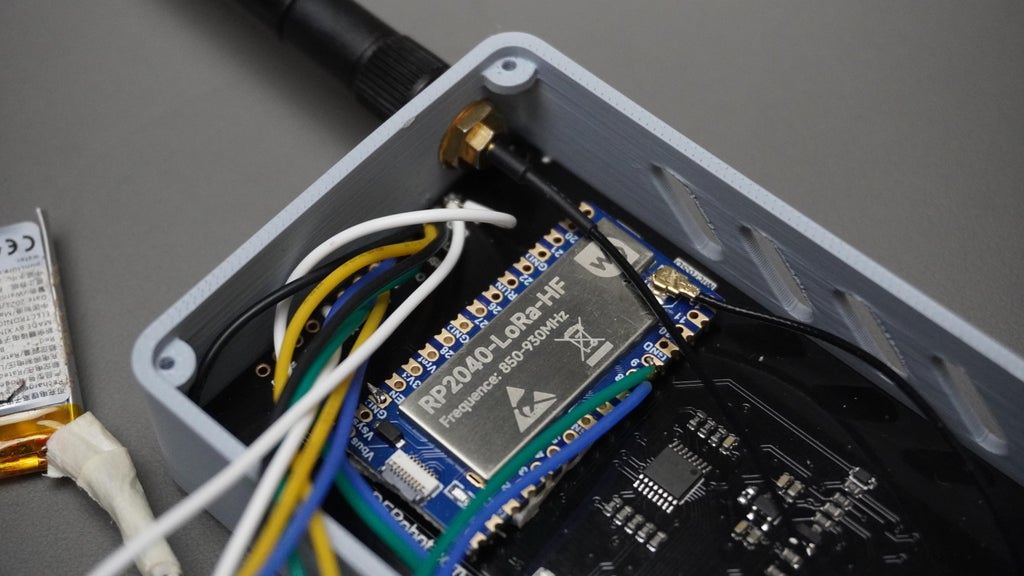
- Take the LoRa antenna.
- Unscrew the antenna connector from the module.
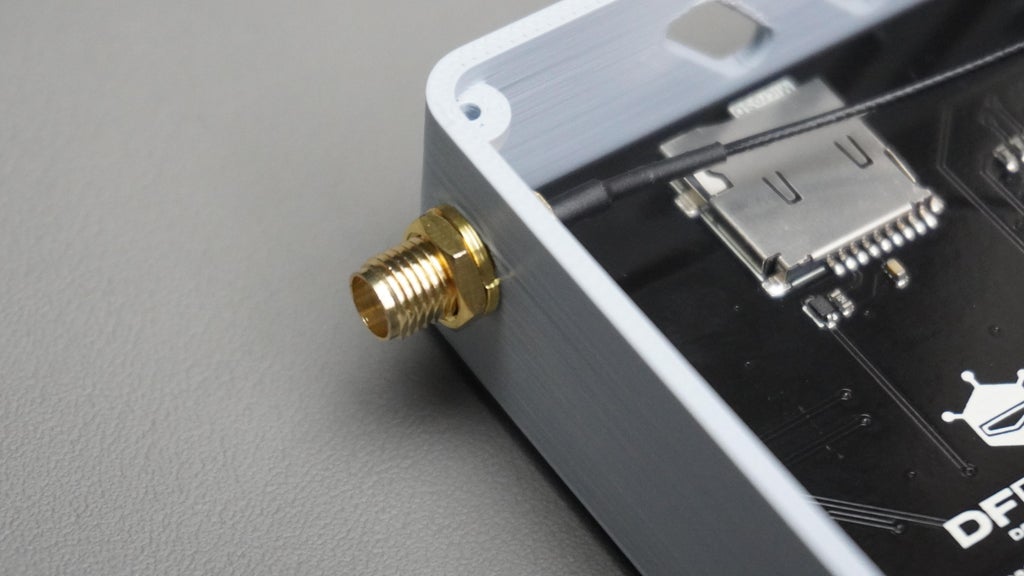
- Pass the antenna through the antenna hole on the housing.
- Screw the antenna back onto the LoRa module from the outside.
- Make sure the antenna is firmly seated and facing upright.



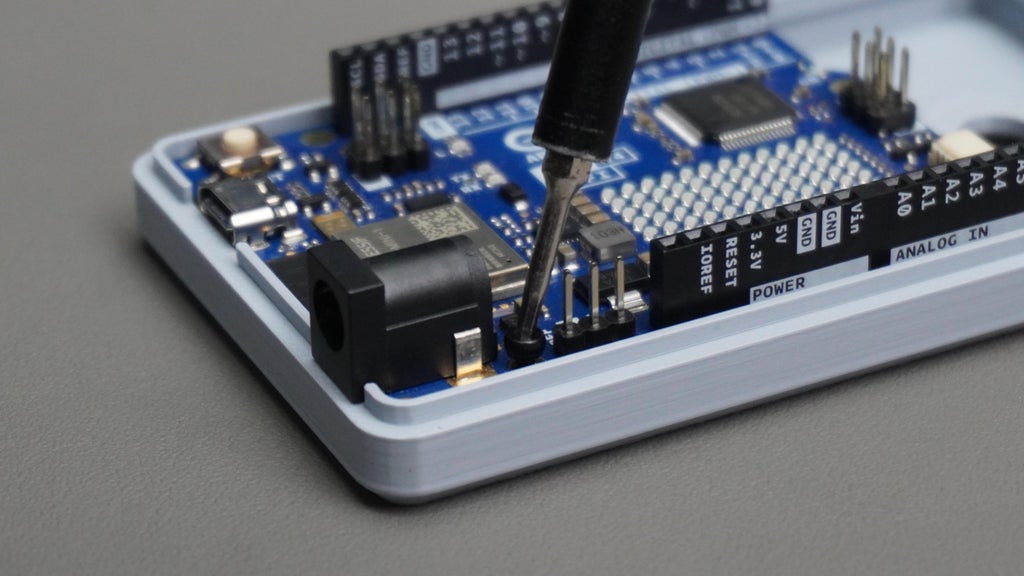
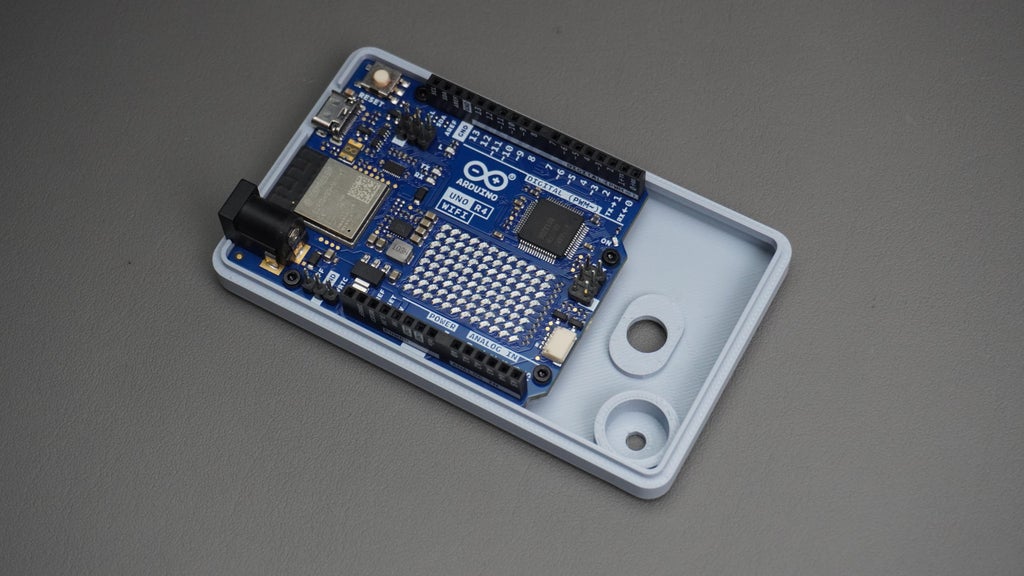
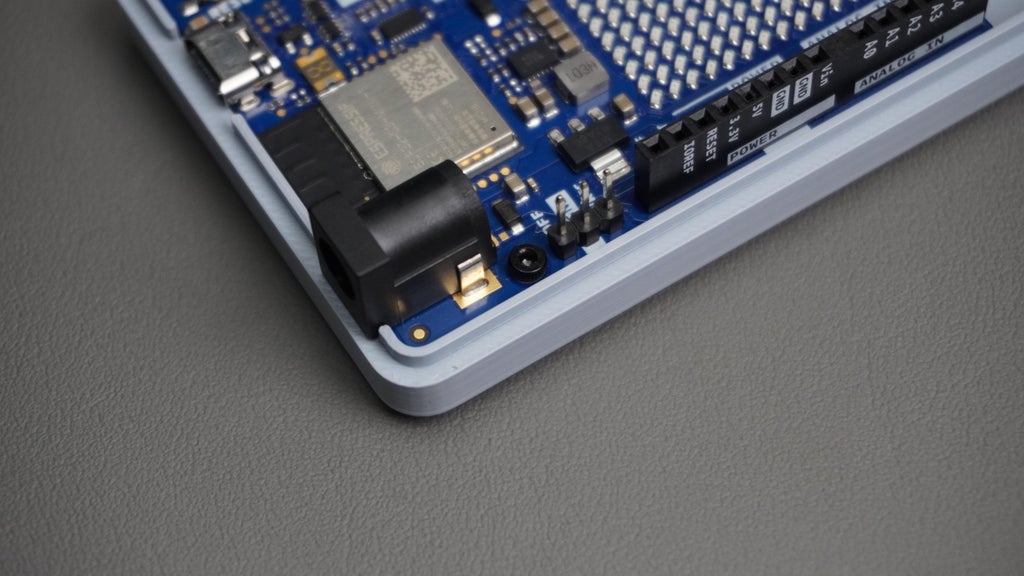
Step 27: Arduino Assembly
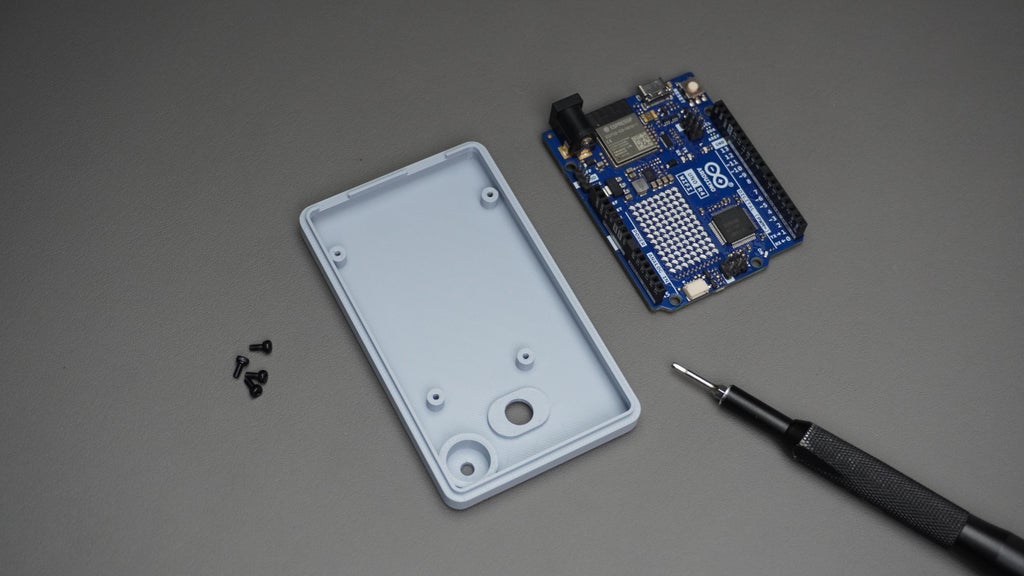
- Take the Arduino Uno R4 WiFi and the gateway cover.
- Align the Arduino with the mounting holes on the cover.
- Secure it in place using 4× M2 screws.
- Ensure the Type-C port and headers remain accessible through the cover cutouts.



Step 28: Buzzer and Power Switch Assembly
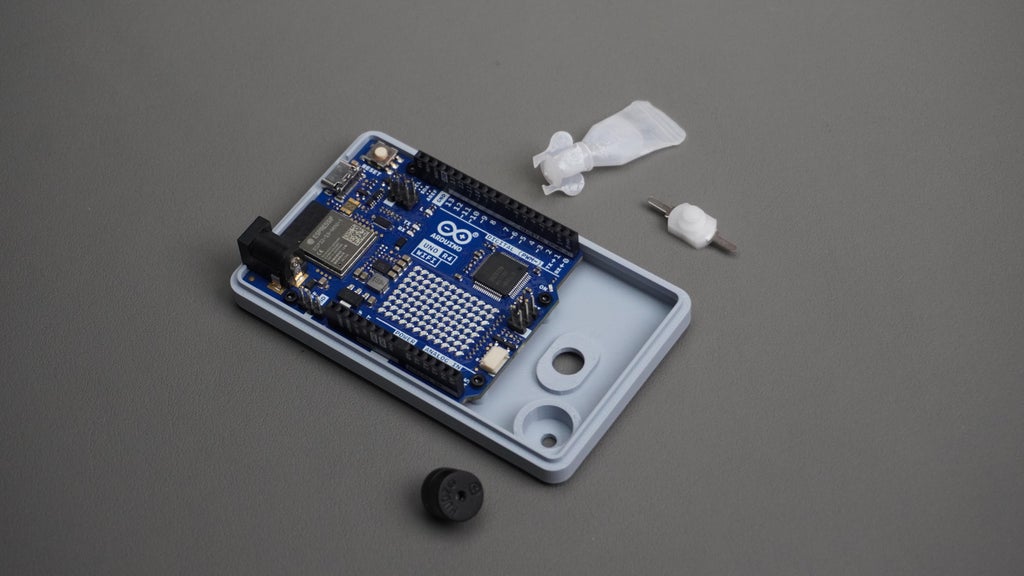
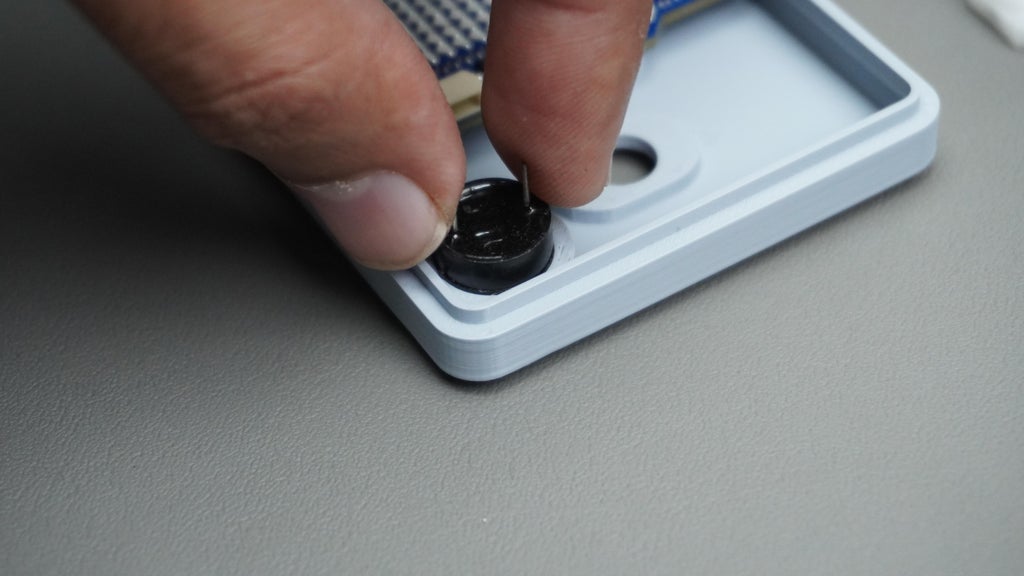
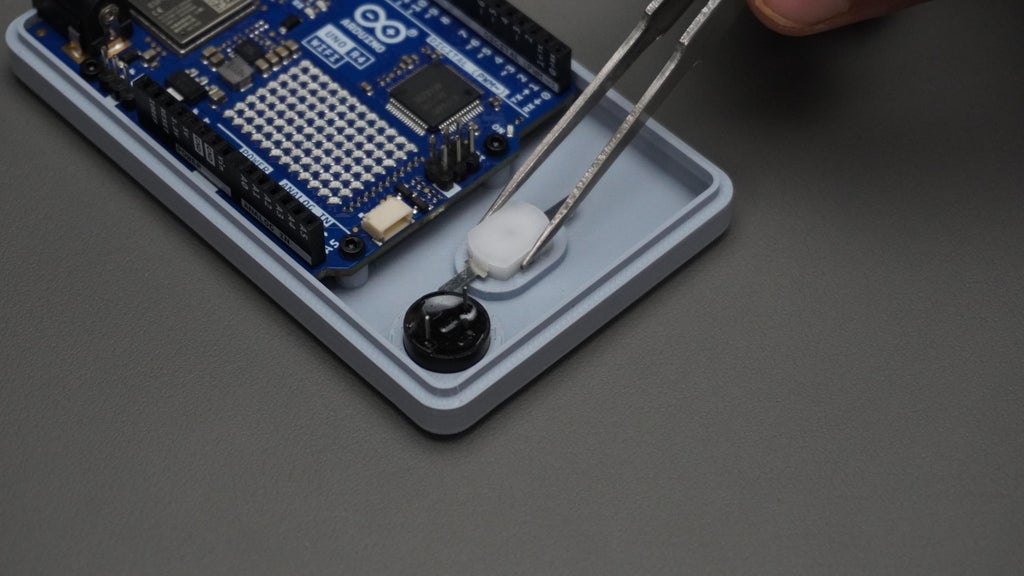
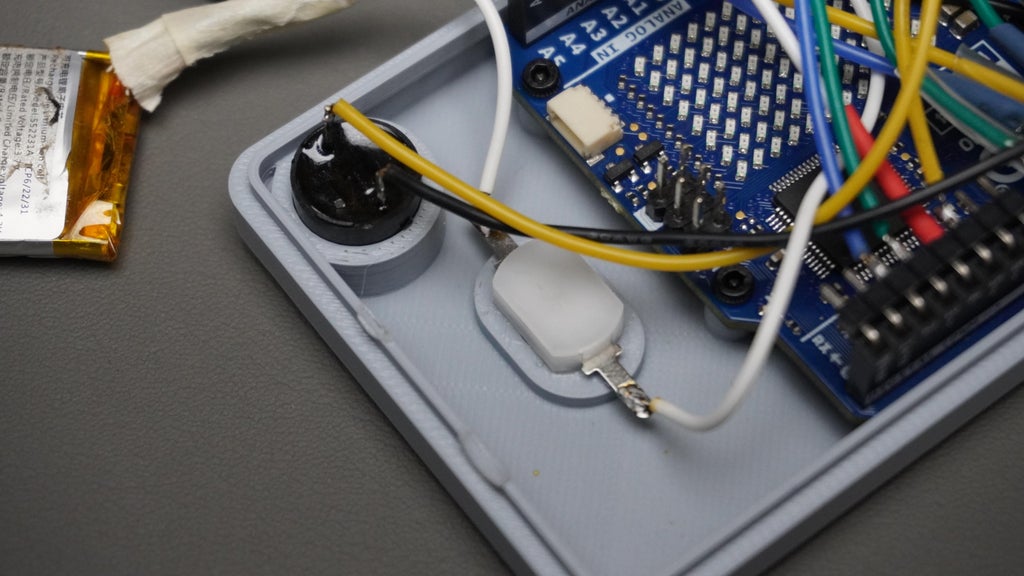
- Take the buzzer, the power switch, and some quick glue.
- Insert the buzzer into its dedicated slot on the cover.
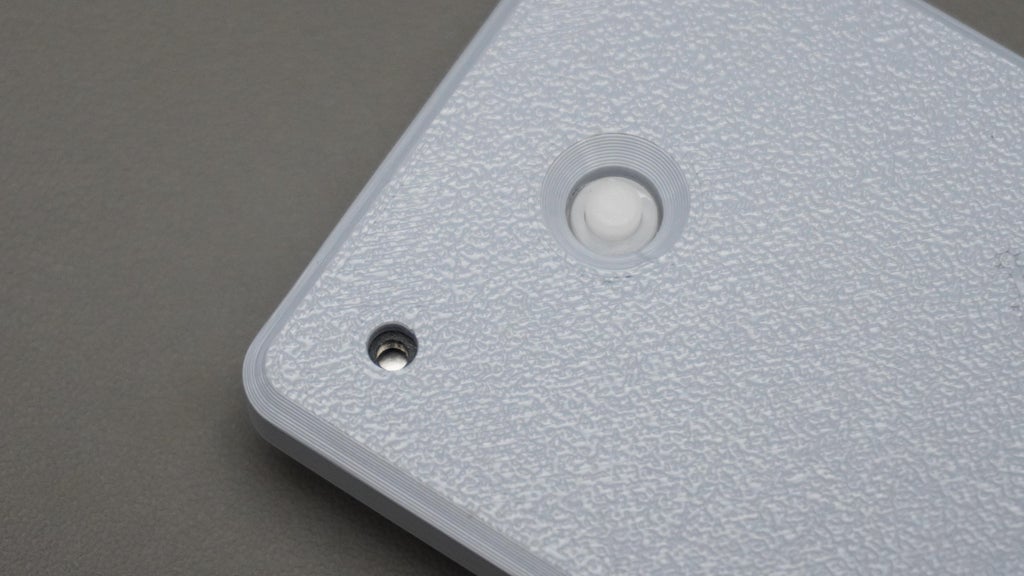
- Insert the power switch into its cutout hole on the cover.
- Apply a small amount of quick glue around the switch edges to secure it in place.
Step 29: Connections
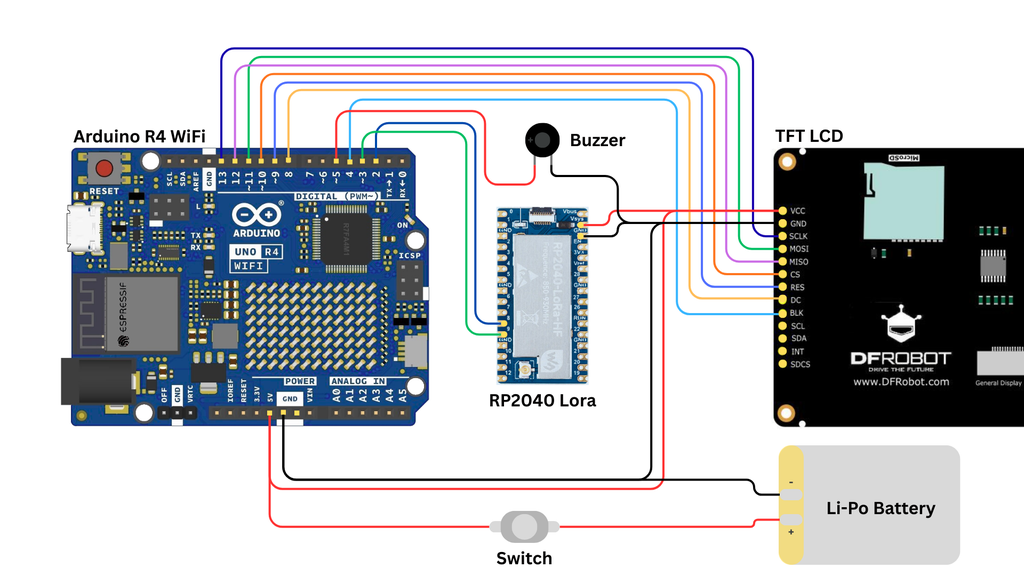
Now it’s time to wire everything together. Follow the circuit diagram carefully when connecting the Arduino, TFT Display, and LoRa module.
I used male header pins to avoid soldering directly to the Arduino. This way, the display and modules can be plugged and unplugged easily for debugging or replacement.
Arduino ↔ Display (TFT)
- Connect as shown in the wiring diagram above (image).
- Ensure all data and control pins are matched correctly, with 5V and GND powering the display.
Arduino ↔ LoRa Module
- GND → GNS (LoRa GND)
- 5V → VSys (LoRa Power)
- Pin 2 → Pin 9 (LoRa UART RX/TX pair)
- Pin 3 → Pin 8 (LoRa UART TX/RX pair)
Power & Peripherals
- Connect the battery and power switch between GND and 5V of the Arduino.
- Connect the buzzer:
- GND → Arduino GND
- +Ve → Arduino Pin5


Step 30: Arduino Code
Now let’s program the Gateway so it can communicate with the nodes, process sensor/event data, and upload everything to Firebase.
Download the Code
- Go to the Forest Guard GitHub repository.
- Download and extract the files.
- Open Gateway_V1.ino in the Arduino IDE.
Setup Arduino IDE
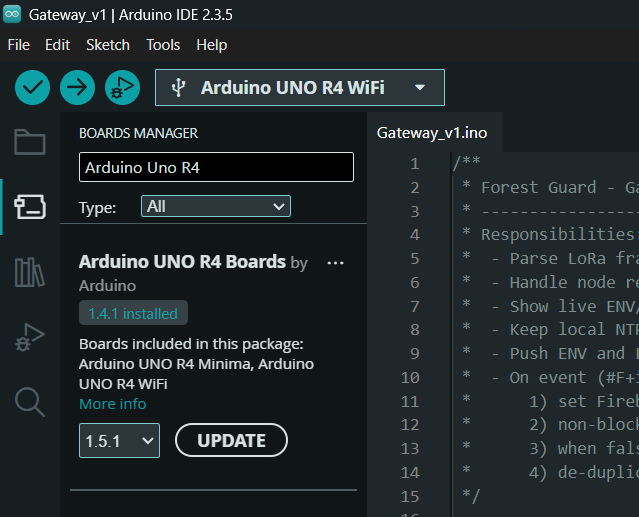
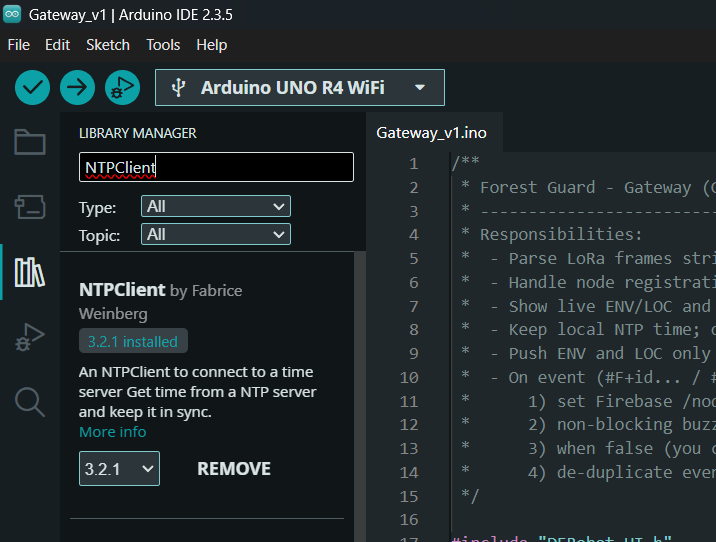
- Make sure the Arduino Uno R4 WiFi board package is installed via Board Manager.
- Install all required libraries as shown in the reference images (WiFiS3, ArduinoHttpClient, NTPClient, DFRobot UI/TFT libraries, etc.).
Add Your Credentials
Inside the sketch:
- Enter your WiFi SSID and password.
- Enter your Google Firebase host URL and authentication key.
// Wi-Fi
const char* WIFI_SSID = "<your-ssid>";
const char* WIFI_PASS = "<your-pass>";

// Firebase RTDB (no https://, no trailing slash)
const char* FB_HOST = "<project-id>-default-rtdb.asia-southeast1.firebasedatabase.app";

// Legacy database secret copied in Step 3
const char* FB_AUTH = "<DATABASE_SECRET>";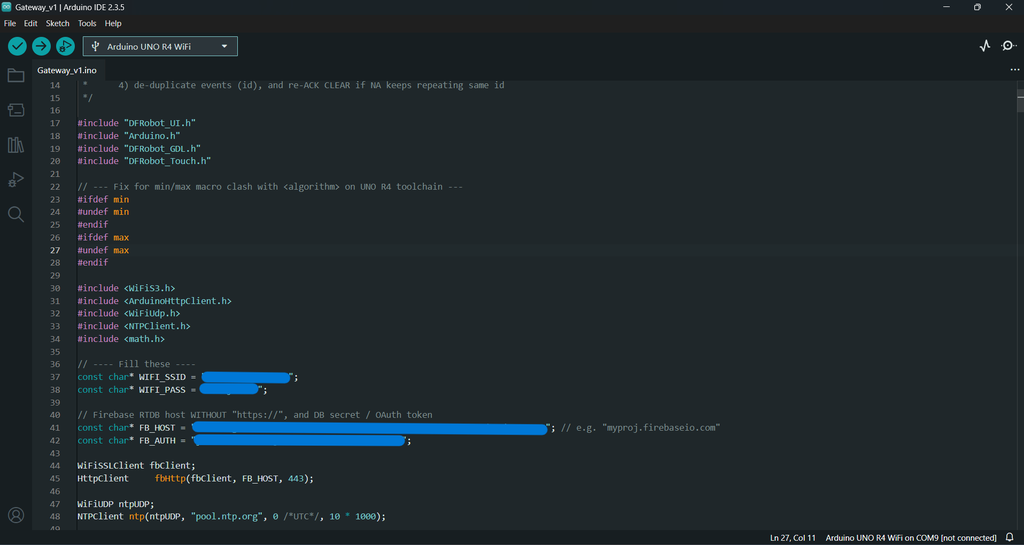
Upload the Code
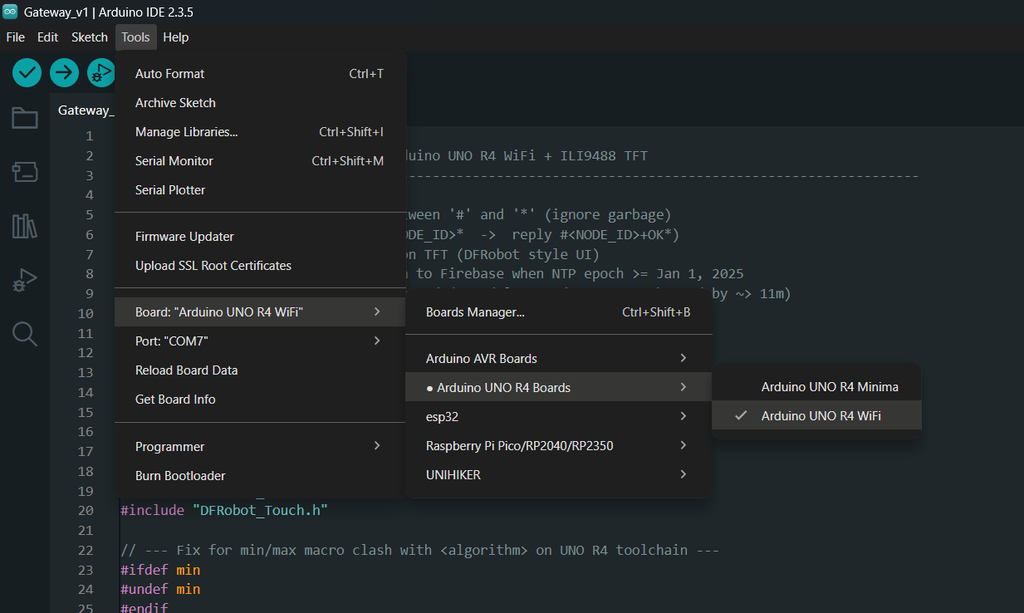
- In Tools → Board, select Arduino UNO R4 WiFi.
- In Tools → Port, select the correct COM port for your board.
- Click Upload.
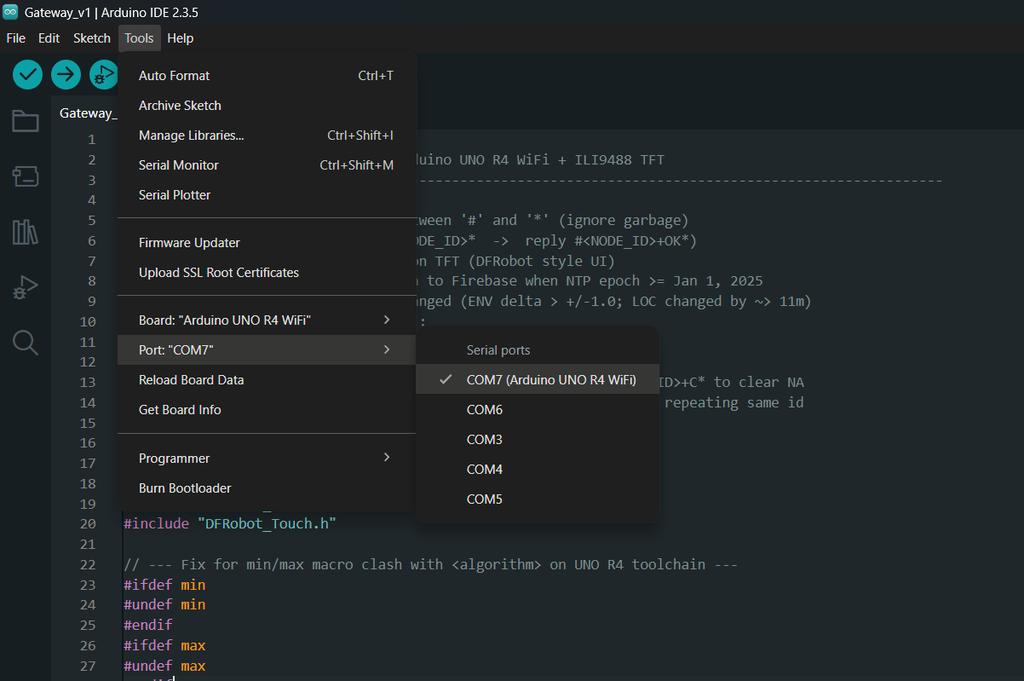
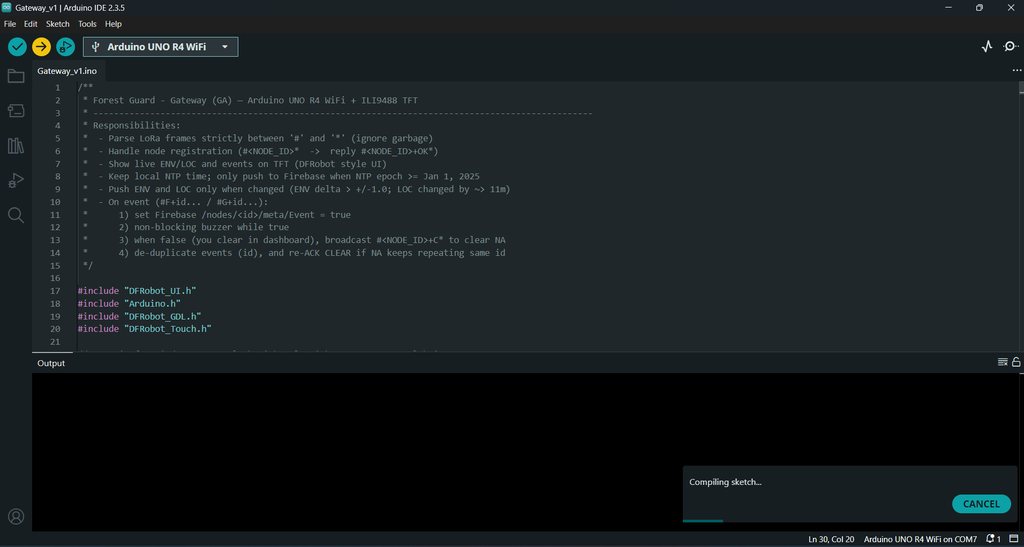
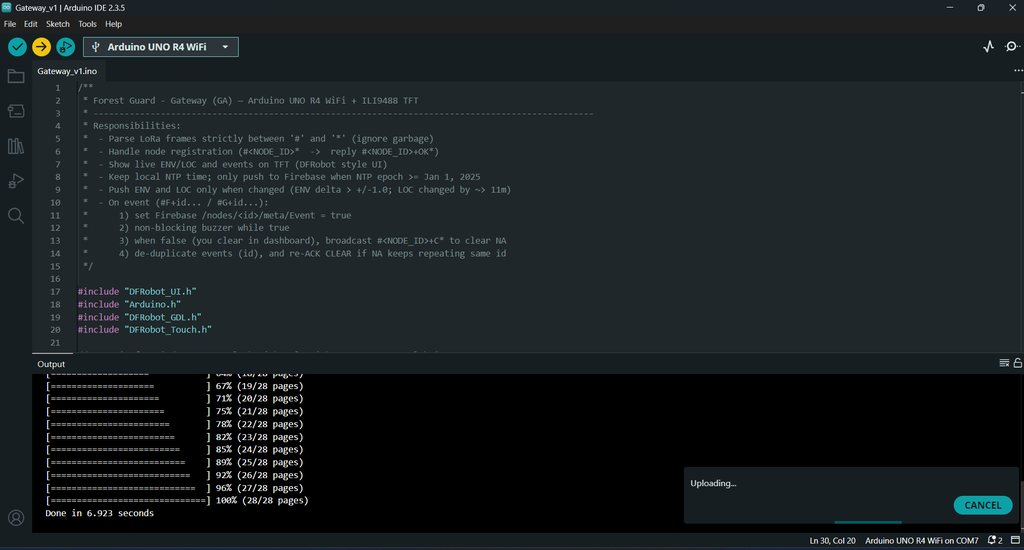
Once uploaded, the Gateway will:
- Connect to WiFi.
- Sync time via NTP.
- Register nodes and receive LoRa messages.
- Push ENV, LOC, and event data into Firebase.
- Drive the TFT display and buzzer for real-time monitoring.
Step 31: Firebase Project Setup
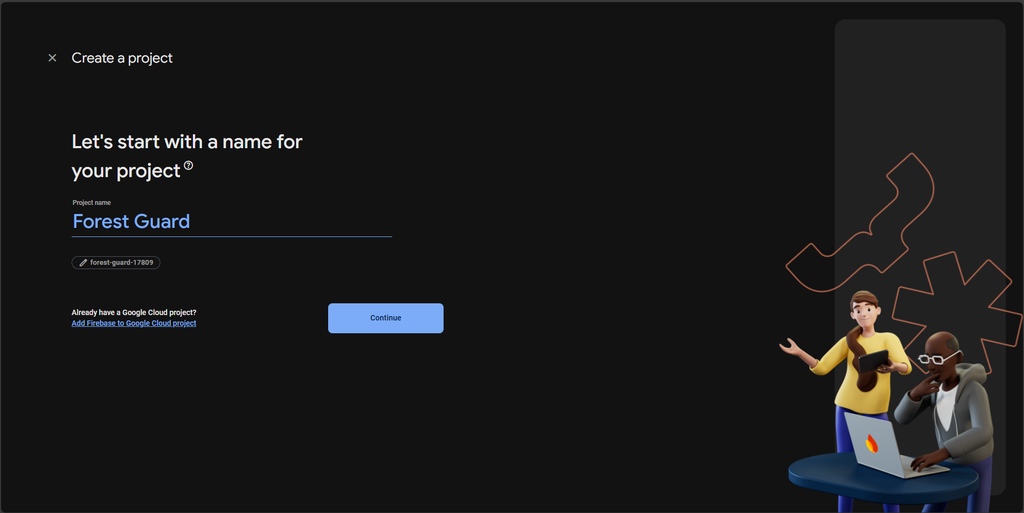
1) Create a Firebase project
- Open https://console.firebase.google.com/
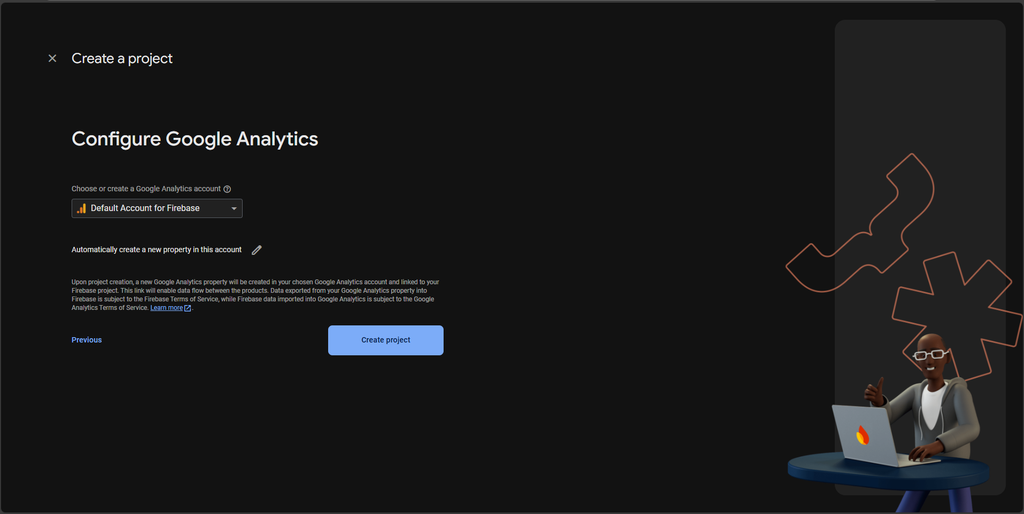
- Create project → (Google Analytics optional; you can keep default).
- Wait for provisioning to finish.

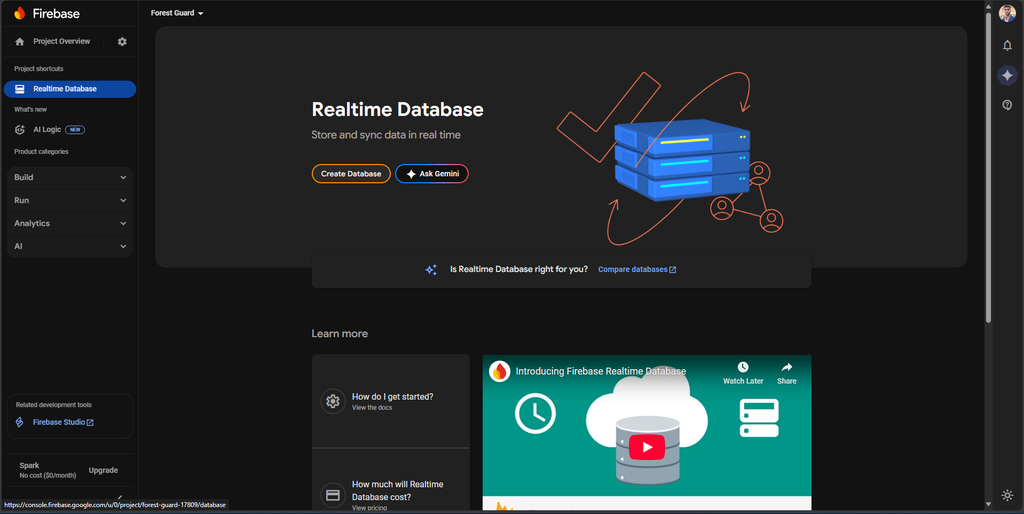
2) Create a Realtime Database
- Left sidebar → Build → Realtime Database → Create Database
- Choose a region close to you (e.g., asia-southeast1 / Singapore).
- For quick testing select Start in Test mode (Firebase allows open read/write for 30 days).


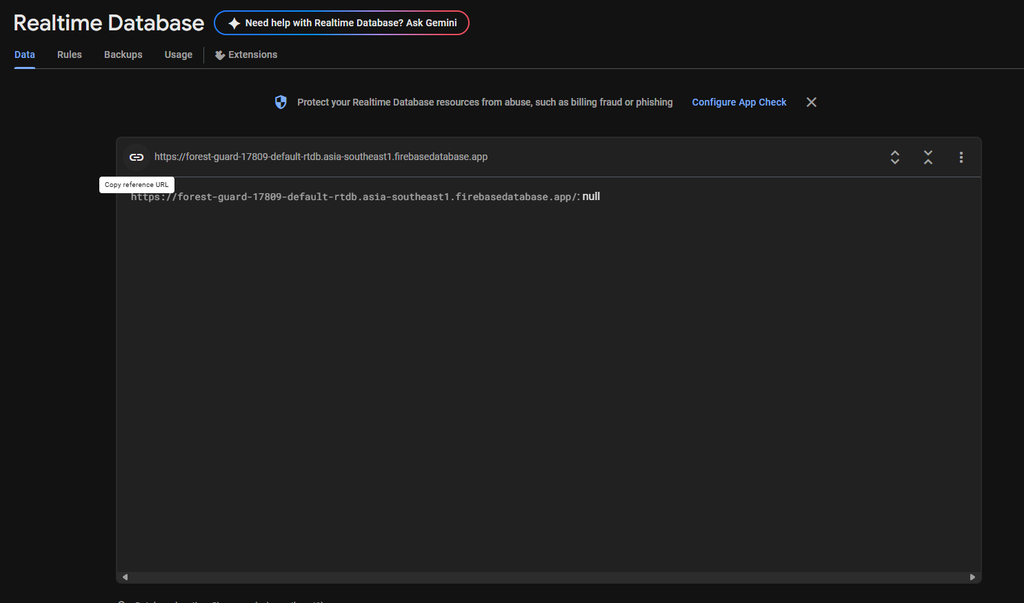
Copy the Database URL shown at the top of the Data tab.
It looks like:
https://<your-project-id>-default-rtdb.asia-southeast1.firebasedatabase.app/You will use this as FB_HOST in the Gateway sketch.
3) Get an auth token (Database Secret) for REST
Your GA uses simple HTTPS REST with the ?auth=... query param.
- Project settings (gear) → Service accounts
- Click Database secrets → Show → Copy the secret.
You will use this as FB_AUTH in the Gateway sketch.
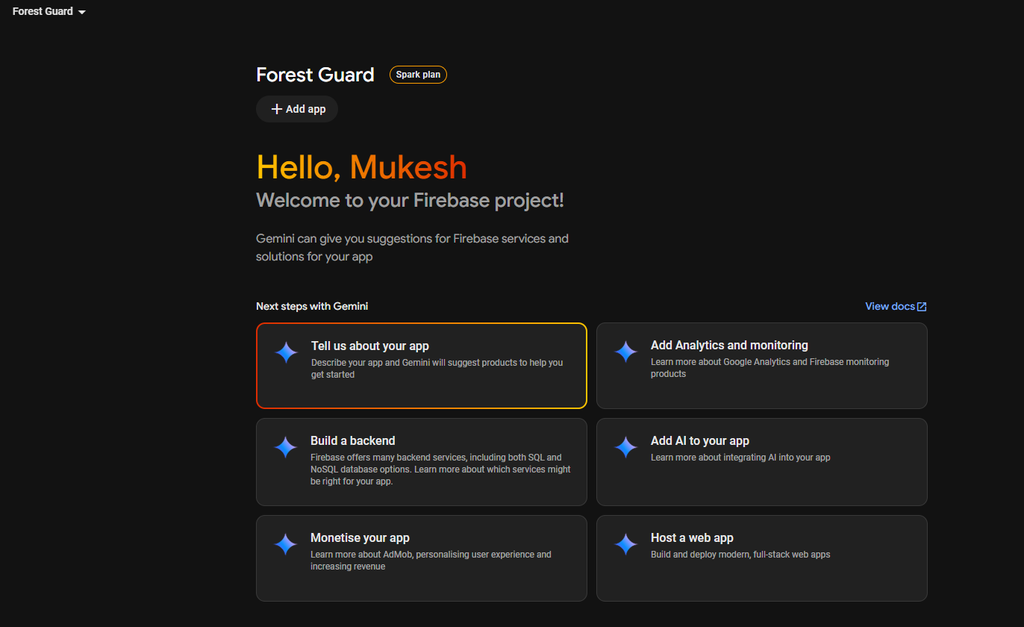
Add a Web App (for your dashboard)
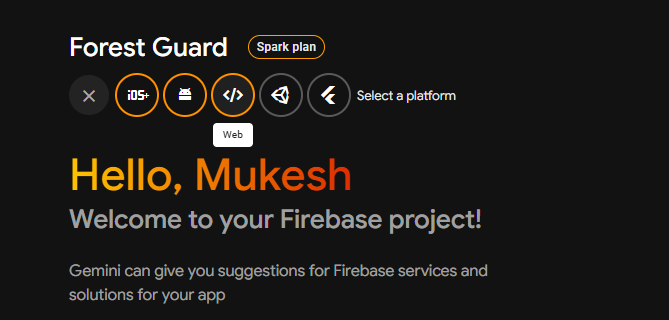
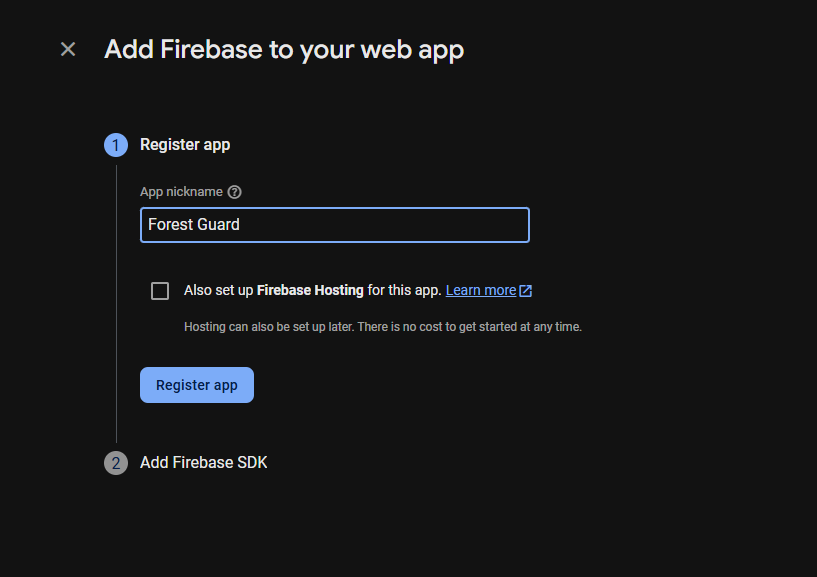
- Project Overview → Add app → Web
- Give it a name (e.g., Forest Guard) → Register app
- On the next screen you’ll see your Web SDK config:
const firebaseConfig = {
apiKey: "...",
authDomain: "...",
databaseURL: "https://<project-id>-default-rtdb.<region>.firebasedatabase.app",
projectId: "...",
storageBucket: "...",
messagingSenderId: "...",
appId: "..."
};
Copy these values into your dashboard (Lovable.dev) settings.
Step 32: How the System Works
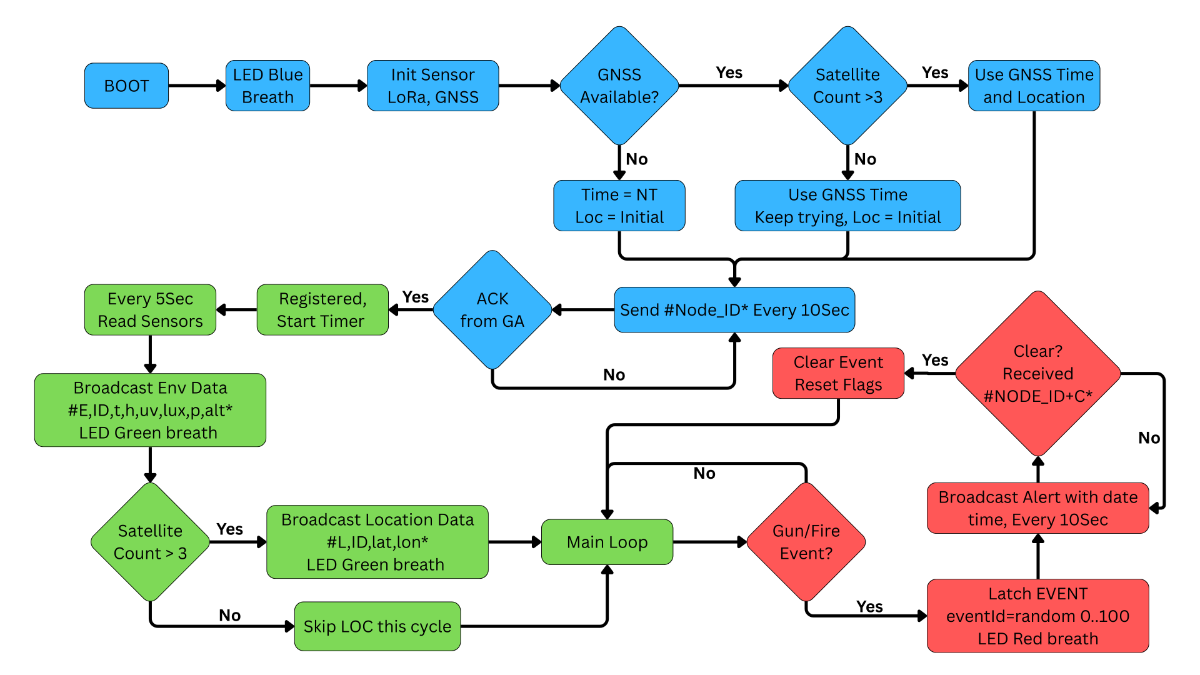
1) Node (NA) boot & registration
- NA = ESP32-S3 with Env + Smoke + Mic + (optional) GNSS + RP2040 LoRa (Meshtastic).
- On boot:
- LED Blue breath.
- Initializes sensors.
- Checks GNSS_AVAILABLE. If present, uses GNSS time; location is sent only when satsUsed > 3.
- Registers with GA by broadcasting #<NODE_ID>* every 10 s until GA replies #<NODE_ID>+OK*.
- Only after registration do Edge Impulse (gunshot) and fire/smoke checks start.
2) Periodic telemetry (non-blocking)
- Every 10sec the NA sends:
- ENV: #E,<ID>,temp,humidity,uv,lux,pressure,alt*
- LOC: #L,<ID>,lat,lon* (only if GNSS fix has >3 sats; if GNSS is not fitted, system can use your initial set location).
- LED Green breath on successful send.
3) Event detection & retry
- Gunshot: Edge Impulse score crosses threshold (e.g., ≥0.90).
- Fire: Smoke reading crosses threshold with hysteresis.
- Node latches a single “current event” and creates eventId = random(0..100).
- Sends every 10 s until cleared by GA:
- Fire: #F+<id>,<ID>,<smoke>,YYYY/MM/DD,HH:MM:SS* or NT if no GNSS time.
- Gun: #G+<id>,<ID>,<score>,YYYY/MM/DD,HH:MM:SS* or NT.
- LED Red breath while event is latched.
4) Gateway (GA) reception & reliability
- GA = Arduino UNO R4 WiFi + TFT UI + Buzzer.
- LoRa noise-proofing: both sides parse only bytes between # and *; everything else is ignored.
- On #<ID>* → replies #<ID>+OK* (register ACK).
- On telemetry:
- Maintains last posted values and only uploads to Firebase when changed
- ENV changed by ≥ ±1.0 per field
- LOC changed by ≥ 0.00010° (~11 m)
- Maintains last posted values and only uploads to Firebase when changed
- NTP gate: GA writes to Firebase only after epoch ≥ 2025-01-01 (NTP warmup).
5) Cloud logging (your schema)
- GA writes to Firebase RTDB paths:
- nodes/<ID>/env/<epoch> → { temp, humi, uvi, li, pres, alt }
- nodes/<ID>/Loc/<epoch> → { lat, lon } (capital L)
- nodes/<ID>/fire/<epoch> → { value, NodeTime }
- nodes/<ID>/gun/<epoch> → { score, NodeTime }
- nodes/<ID>/meta → { Event, lastSeenAt }
- When an event frame arrives:
- Sets meta/Event = true.
- Logs the event (de-duplicates by eventId).
- Starts buzzer (non-blocking toggle).
6) Dashboard + operator loop
- Dashboard reads RTDB to render map, charts, and alerts.
- When the site is inspected and safe, the operator sets meta/Event = false in the dashboard.
7) Clearing the event (end-to-end handshake)
- GA polls meta/Event. When it becomes false:
- GA broadcasts #<ID>+C* (a few times for reliability).
- Stops buzzer, unlatches its local event, and remembers the last cleared eventId.
- If NA keeps repeating the same eventId, GA does not re-log the event; it simply re-ACKs CLEAR and moves on.
- NA receives #<ID>+C* → clears its event latch and resumes normal telemetry.
8) LED summary (NA)
- Blue: boot/LoRa/registration
- Green: data sent
- Red: event latched
.png)
.png)
Step 33: Dashboard
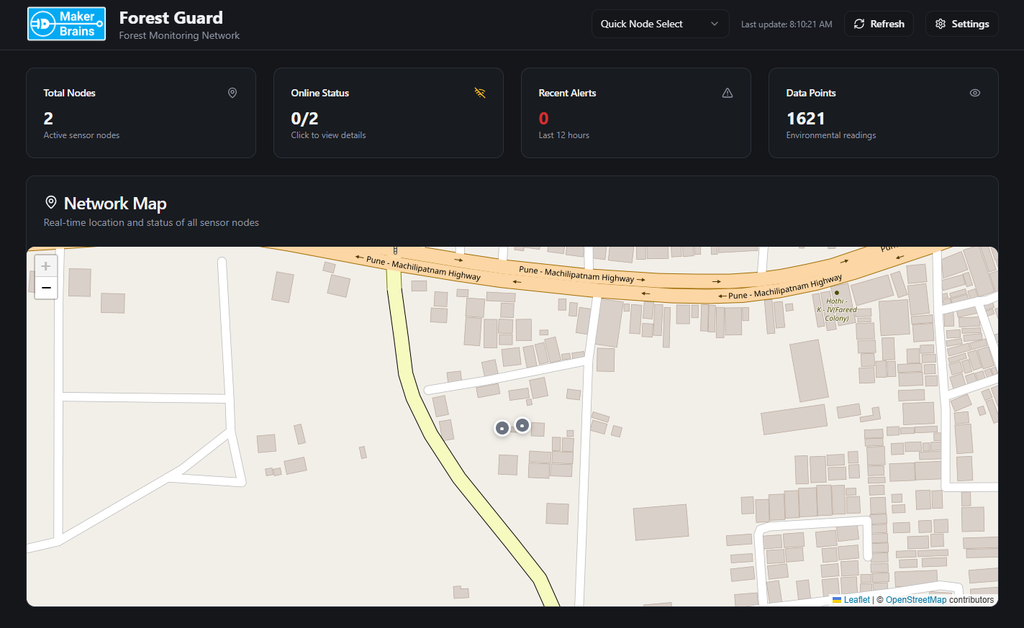
To visualize the data coming from the Forest Guard Nodes, I built a custom web dashboard using Lovable.dev. This dashboard connects directly to Firebase and provides both a quick overview and detailed insights into the forest monitoring network.
Setup
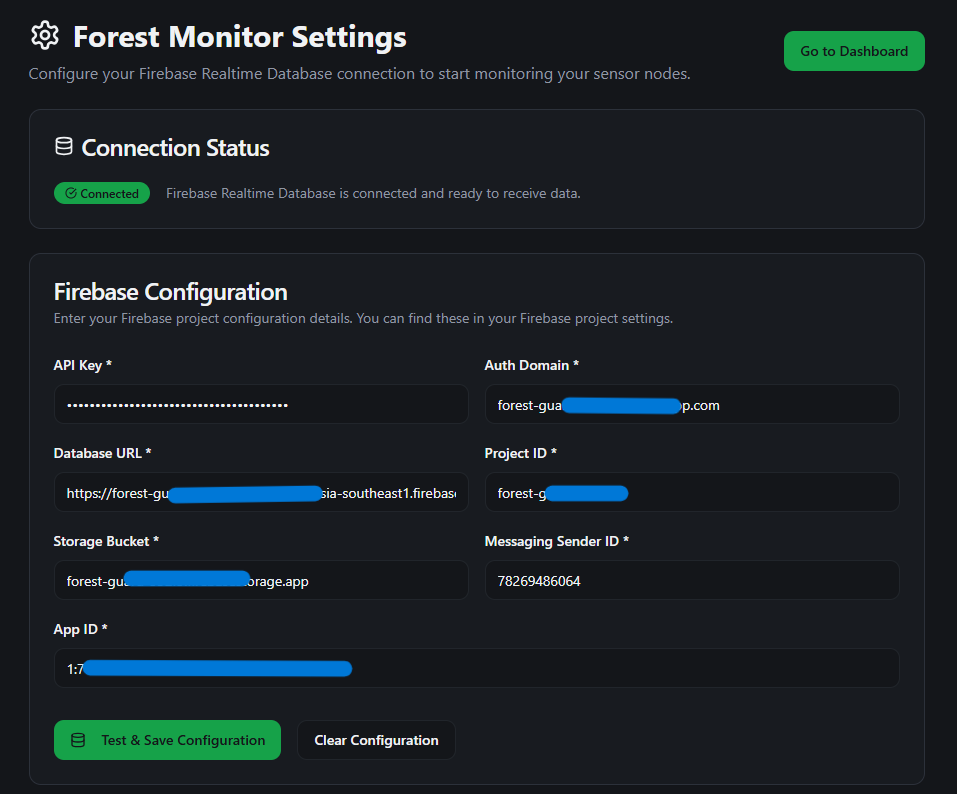
- When the dashboard is first opened, it takes you to a Firebase configuration page.
- Here, you enter your Firebase host and authentication key.
- Once saved, the dashboard connects to the database and loads the real-time data.


Map View
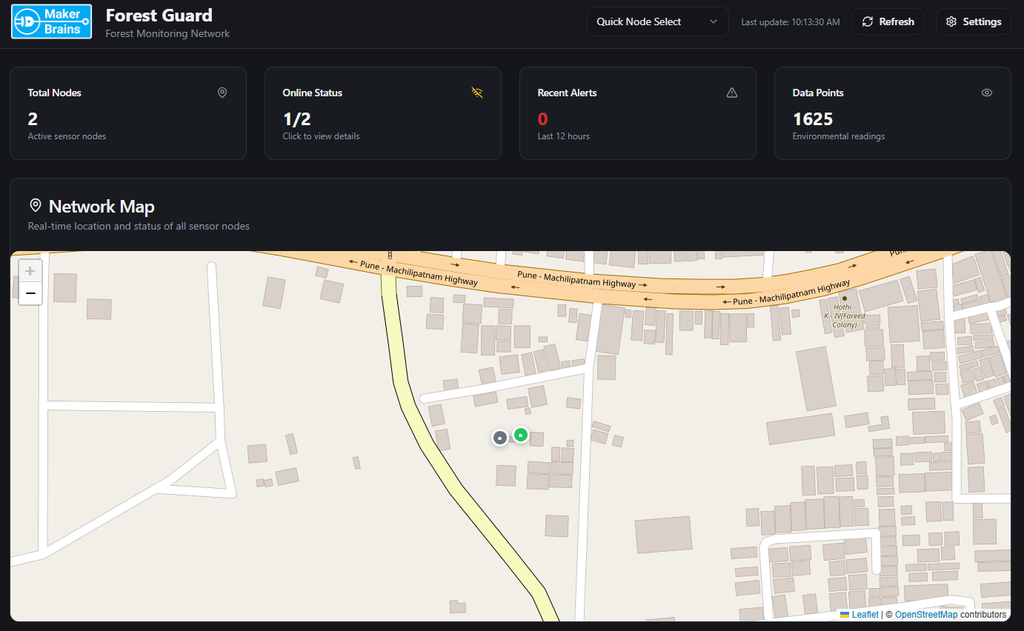
- The map view shows the live location of all deployed nodes.
- Each node is color-coded by status:
- Gray → Inactive
- Green → Active
- Red → Alert (fire or gunshot detected)
- By clicking on a node, you can quickly check its latest sensor data and status.

Quick Cards
At the top of the dashboard, quick cards summarize the system:
- Total Nodes → Number of nodes in the network.
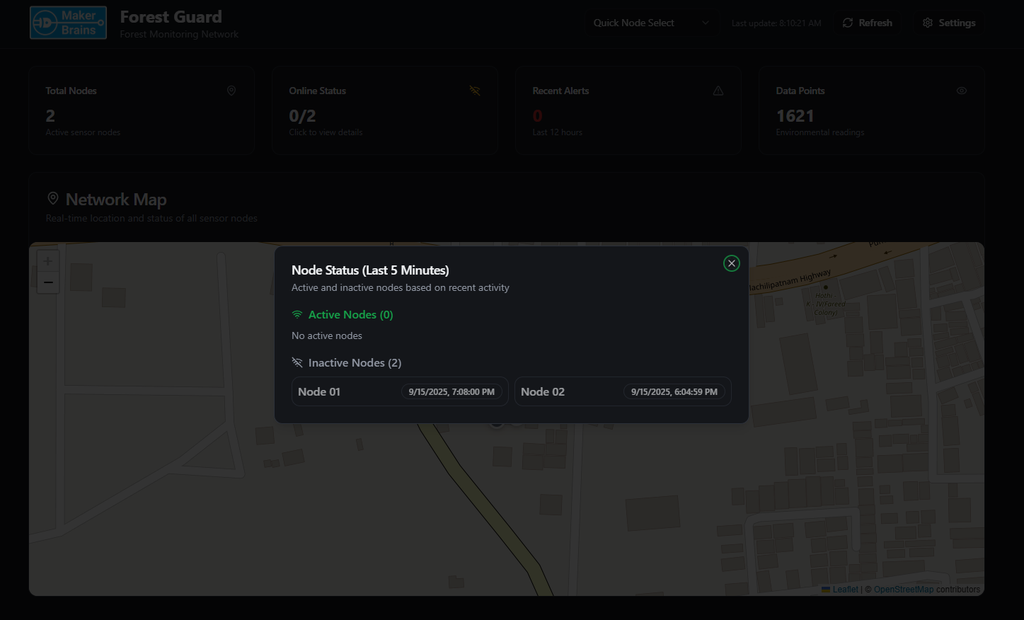
- Online Status → Active vs inactive nodes.
- Recent Alerts → Count of fire/gunshot events in the last 12 hours.
- Data Points → Total environmental readings logged.
Node Details

Clicking on “View Node Details” opens a full dashboard view for that node. Here you can monitor:
- Current Environmental Conditions (temperature, humidity, pressure, light, UV, altitude).
- Trends over Time with graphs for Temperature & Humidity, Light & UV Index.
- Fire Detection Events (timestamped alerts from smoke sensor).
- Gunshot Detection Events (with AI confidence scores from Edge Impulse model).

Why It Matters
This dashboard transforms raw sensor data into a clear, real-time interface for rangers, researchers, or conservation teams. With one glance, you can see:
- Which nodes are active, where they are, and what conditions they’re reporting.
- Whether a fire or gunshot event has been detected.
- Historical trends that help understand the forest’s environmental conditions.
It essentially turns the Forest Guard network into a living digital twin of the forest.
Step 34: Conclusion

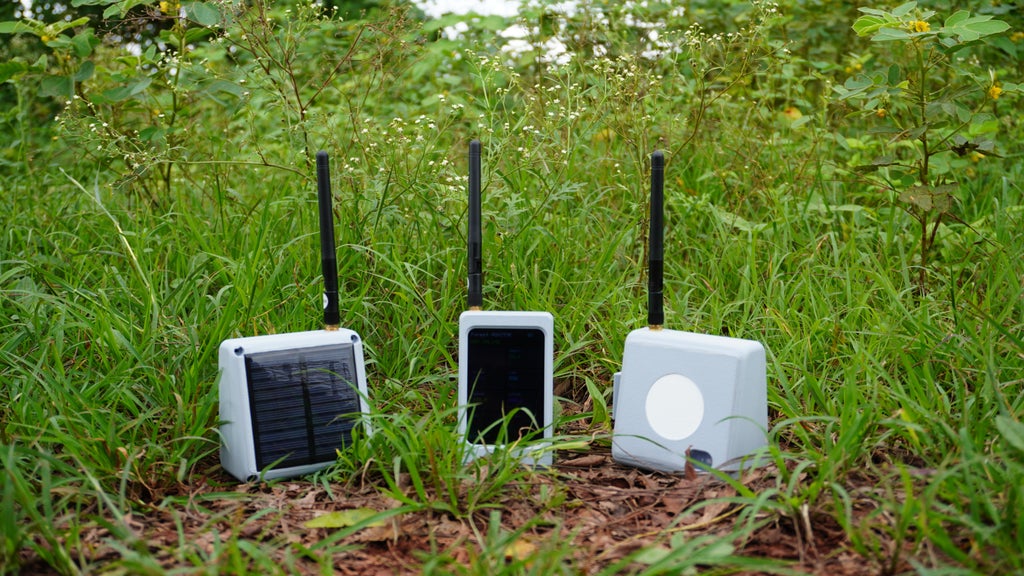
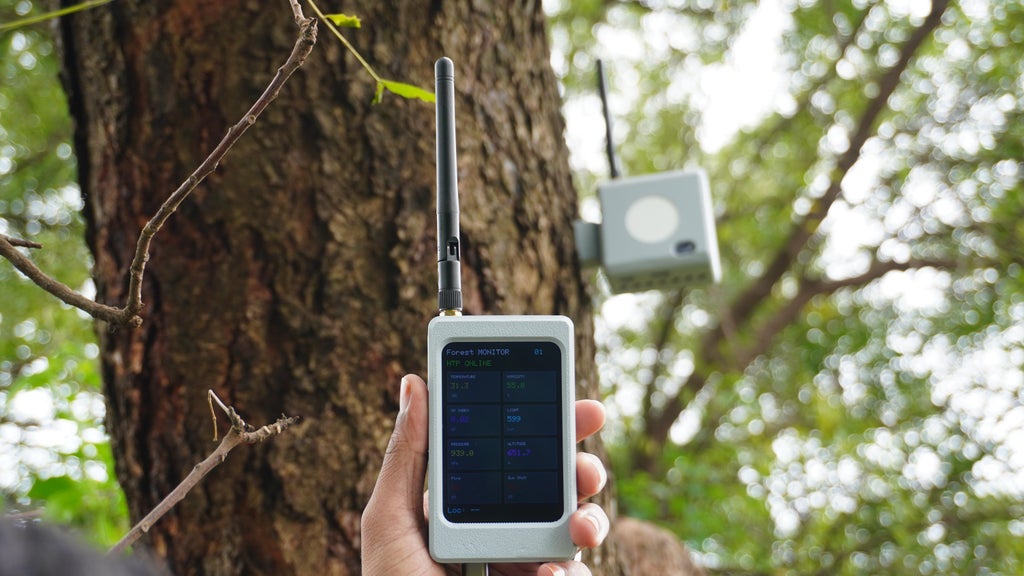

With the completion of this build, we have created Forest Guard, a decentralized forest surveillance system that can detect and alert about critical events such as gunshots or forest fires — even in regions with no internet or cellular coverage. By combining low-power LoRa mesh networking, solar-powered sensor nodes, and edge AI intelligence, this project proves that modern technology can play a vital role in safeguarding our forests and protecting wildlife.
The Gateway provides a central bridge to the cloud, where data is stored and visualized in real time, while the Nodes tirelessly monitor the environment, detect anomalies, and forward alerts across the mesh. Together, they form a scalable, resilient, and sustainable system that can make a real difference for conservationists, rangers, and environmental researchers.
What makes this system truly exciting is the flexibility of Edge AI. Using the Edge Impulse platform, we trained a model to detect gunshots, but the same pipeline can be extended further:
- By training on audio recordings of chainsaws or tree cutting, the system could become an anti-illegal logging detector.
- With audio datasets of endangered or extinct species calls, it could serve as a wildlife discovery and monitoring system, helping scientists and communities identify rare animals in the wild.
This adaptability shows that Forest Guard is not just a single-purpose project, but a platform for innovation in forest conservation. From early fire detection to biodiversity monitoring, the possibilities are vast.
In the end, this project is a step toward a future where technology and nature coexist, where smart sensors and AI extend the eyes and ears of humans into places we cannot always reach — ensuring our forests remain safe, vibrant, and full of life for generations to come. 🌲🌍💡


