



https://www.digikey.in/en/mylists/list/L688AK0W5O
Smart Light Automation — ESP32 + Relay + Bulb Controlled by Flutter App (Firebase)
Short: A complete step-by-step guide to build a smart light controller using an ESP32 that controls a relay (and a light bulb) and is controlled by a Flutter mobile app using Firebase Realtime Database.
Table of contents
- Prerequisites
- Hardware components
- Safety notes (must read)
- System architecture
- Firebase setup (Realtime Database)
- ESP32 firmware (Arduino IDE) — subscribe & command listener
- Wiring diagram & notes
- Flutter app (UI + Firebase integration)
- Testing & deployment
- Optional improvements & troubleshooting
1. Prerequisites
- Basic knowledge of Arduino/ESP32 and Flutter/Dart.
- Arduino IDE (or PlatformIO) installed and ESP32 board support added.
- Flutter SDK installed and Android/iOS setup working.
- A Firebase account.
- A safe way to work with mains electricity, or use a low-voltage lamp/LED for testing.
2. Hardware components
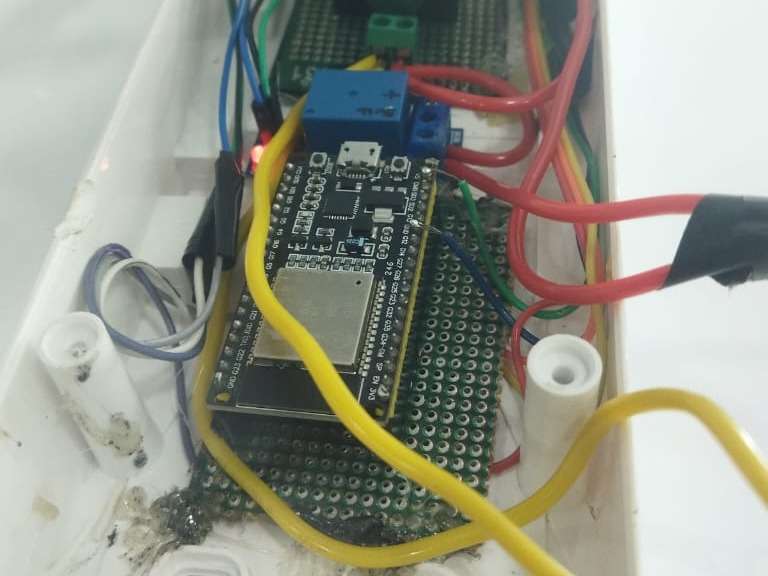
- ESP32 development board (e.g., ESP32-WROOM-32)
- Single-channel relay module (suitable for mains) or SSR if switching AC loads
- Light bulb + bulb holder (for mains) or a low-voltage test lamp/LED (for bench testing)
- Jumper wires, breadboard (for low-voltage test)
- 5V power supply for relay (if relay needs 5V); ESP32 powered by USB / 5V
- Optional: flyback diode / opto-isolated relay module
3. Safety notes (must read)
- If you are switching mains (AC) you must have basic electrical safety knowledge. Mains wiring can kill.
- If unsure, use a low-voltage lamp or hire a licensed electrician to wire the relay to the mains side.
- Use an opto-isolated relay module or SSR for improved safety and reduced noise.
- Always disconnect power before wiring.
4. System architecture
- Flutter app (mobile) writes a value
true/falseto Firebase Realtime Database at path/lights/room1 - ESP32 uses the Firebase client library to subscribe/listen to that DB path changes
- When the DB value changes, ESP32 toggles a GPIO that drives the relay module
- The relay switches the light ON/OFF
Database example:
/lights
  /room1: true
5. Firebase setup (Realtime Database)
- Go to [Firebase Console] and create a new project.
- In the project, add Android / iOS app later (for Flutter you'll configure google-services files).
- In the left menu choose Realtime Database → Create database → Start in test mode (you can tighten rules later).
- Note your project's
databaseURL(found in Realtime Database panel) — you'll use it in ESP32 and Flutter. - For Flutter app: follow FlutterFire docs to add
google-services.json(Android) andGoogleService-Info.plist(iOS), and configurefirebase_coreandfirebase_databasepackages.
Simple Realtime DB rules for testing (open):
{
  "rules": {
    ".read": true,
    ".write": true
  }
}
(Change to secure rules before production.)
6. ESP32 firmware (Arduino IDE)
Libraries to install
Firebase ESP32 Clientby Mobizt (use Library Manager or GitHub)ArduinoJson(usually required)
Example code (Arduino)
#include <WiFi.h>
#include <Firebase_ESP_Client.h>

// Provide the token and URL from your Firebase project
#define WIFI_SSID "YOUR_WIFI_SSID"
#define WIFI_PASS "YOUR_WIFI_PASSWORD"

// Firebase project settings
String databaseURL = "https://your-project-id-default-rtdb.firebaseio.com/"; // include trailing /

// Replace these if using user authentication; for test DB you can use an empty auth
FirebaseData fbdo;
FirebaseAuth auth;
FirebaseConfig config;

const int RELAY_PIN = 18; // choose a free GPIO

void setup() {
  Serial.begin(115200);
  pinMode(RELAY_PIN, OUTPUT);
  digitalWrite(RELAY_PIN, HIGH); // set relay to OFF depending on module (active LOW common)

  WiFi.begin(WIFI_SSID, WIFI_PASS);
  Serial.print("Connecting to Wi-Fi");
  while (WiFi.status() != WL_CONNECTED) {
    delay(300);
    Serial.print('.');
  }
  Serial.println("\nWiFi connected");

  config.database_url = databaseURL.c_str();
  // No auth for test mode
  Firebase.begin(&config, &auth);

  // Subscribe to a path
  if (Firebase.RTDB.subscribe(&fbdo, "/lights/room1")) {
    Serial.println("Subscribed to /lights/room1");
  } else {
    Serial.println("Failed to subscribe");
  }
}

void loop() {
  // Check for realtime events
  if (Firebase.RTDB.readEvent(&fbdo)) {
    // event type can be put, patch, delete
    if (fbdo.event_type == "put" || fbdo.event_type == "patch") {
      String path = fbdo.dataPath();
      String val = fbdo.to<String>();
      Serial.println("Event: " + fbdo.event_type + " Path: " + path + " Value: " + val);

      // Convert value and set relay
      if (val == "true" || val == "1") {
        digitalWrite(RELAY_PIN, LOW); // depends on relay module (LOW may be ON)
      } else {
        digitalWrite(RELAY_PIN, HIGH); // OFF
      }
    }
  }
  delay(10);
}
Notes:
- Adjust
RELAY_PINto the pin you wired. - Many relay modules are active LOW (drive pin LOW to close relay). Reverse logic if needed.
- Keep
databaseURLaccurate; include trailing slash as library expects.
7. Wiring diagram & notes
Low-voltage bench test (safe):
- ESP32 GND -> Relay module GND
- ESP32 5V (or VIN 5V) -> Relay VCC (only if module supports 5V logic; if module supports 3.3V you can use 3.3V)
- ESP32 GPIO18 -> Relay IN
- Relay common (COM) -> Lamp live (or to your low-voltage lamp)
- Relay normally open (NO) -> Lamp live out
- Neutral -> Lamp neutral
Important mains wiring note:
- When switching AC mains: route the live (hot) wire through COM and NO of the relay. Never touch live wires while power is connected.
- Use insulated terminals and mount relay in an enclosure rated for mains.
8. Flutter app (UI + Firebase integration)
Packages (pubspec.yaml)
dependencies:
  flutter:
    sdk: flutter
  firebase_core: ^2.0.0
  firebase_database: ^10.0.0
Minimal app (main.dart)
.jpg)
import 'package:flutter/material.dart';
import 'package:firebase_core/firebase_core.dart';
import 'package:firebase_database/firebase_database.dart';

void main() async {
  WidgetsFlutterBinding.ensureInitialized();
  await Firebase.initializeApp();
  runApp(MyApp());
}

class MyApp extends StatelessWidget {
  @override
  Widget build(BuildContext context) => MaterialApp(home: LightControlPage());
}

class LightControlPage extends StatefulWidget {
  @override
  _LightControlPageState createState() => _LightControlPageState();
}

class _LightControlPageState extends State<LightControlPage> {
  final dbRef = FirebaseDatabase.instance.ref('lights/room1');
  bool isOn = false;

  @override
  void initState() {
    super.initState();
    dbRef.onValue.listen((event) {
      final val = event.snapshot.value;
      setState(() => isOn = (val == true || val == 'true'));
    });
  }

  void toggleLight() {
    dbRef.set(!isOn);
  }

  @override
  Widget build(BuildContext context) {
    return Scaffold(
      appBar: AppBar(title: Text('Smart Light')),
      body: Center(
        child: Column(mainAxisSize: MainAxisSize.min, children: [
          Icon(isOn ? Icons.lightbulb : Icons.lightbulb_outline, size: 100),
          SizedBox(height: 20),
          ElevatedButton(onPressed: toggleLight, child: Text(isOn ? 'Turn Off' : 'Turn On')),
        ]),
      ),
    );
  }
}
Notes:
- Configure
google-services.json/GoogleService-Info.plistper FlutterFire setup. - For production, add Authentication and secure DB rules.
9. Testing & deployment
- Start with a low-voltage lamp or LED to verify wiring and logic.
- Upload ESP32 code and open Serial Monitor — confirm Wi-Fi connection and subscription to
/lights/room1. - Run the Flutter app (emulator or device). When you press the toggle, the DB value should change and the ESP32 Serial should report an event and toggle the relay.
- If relay doesn't change, check relay logic (active LOW vs HIGH) and wiring.
10. Optional improvements & troubleshooting
- Add a secondary DB path for
statuswhere ESP32 writesonline:trueso app can show device online/offline. - Use Firebase Authentication to secure access.
- Add MQTT broker (e.g., Mosquitto) if you prefer MQTT instead of Firebase.
- Use OTA updates for remote firmware upgrades.
- If ESP loses connection, implement reconnect logic and write a
last_seentimestamp to DB.
If you'd like, I can also:
- Provide a ready-made schematic image (low-voltage) you can print.
- Give a production-ready wiring diagram for mains (but remember to involve an electrician).
- Convert the ESP32 code to work using direct HTTP REST calls instead of the Firebase client library.


